Beta: This feature is in beta testing. Send feedback and issues to betatest@shopvox.com. Please be aware that responses may take 24-48 hours.
AI Mail – shopVOX Pro
AI Mail is the next generation of @Mail, and it's included with shopVOX Pro at no additional charge.*
Overview
AI Mail brings your inbox into shopVOX Pro. Connect your Gmail, Google Workspace, or Microsoft Outlook 365 account to read, sort, and reply to email without leaving shopVOX. AI Mail also shows you the customers, contacts, and transactions behind each message that you link in shopVOX.
With AI Mail you can:
Read and reply to email in shopVOX. No more switching between your inbox and your shopVOX.
See what each email is about at a glance. AI labels messages by type (for example, quote request, payment, invoice, or service/warranty) and gives a quick summary.
Gauge customer tone. A sentiment indicator flags how the customer seems to feel, such as happy or frustrated. (in development)
Get customer context in the related sidebar. View contact info, account overview, account health, and recent orders and quotes next to the email.
Link emails to customers, contacts, and transactions. Keep every conversation with the work it belongs to. This includes linking email threads.
Create new transactions, customers, and contacts from an email. Start new work without leaving the message.
Polish your replies with AI writing tools. Check spelling and adjust tone to Friendly, Professional, or Concise.
Availability
AI Mail is currently in beta for:
Level Up customer event attendees (beta access already enabled)
AI Mail webinar attendees (rolling out this week)
If you're in the beta group, AI Mail turns on for you automatically and our team will contact you via an automated email. You don't need to request access. Be sure to remain subscribed to our automated emails for updates, feature notifications, etc.
We'll expand AI Mail to more shopVOX Pro customers in stages. Details to be announced.
AI Mail works per user. Each user connects their own inbox and sees only their own email.
The user on the webinar is the user this feature will be turned on for.
* AI Mail is currently included at no additional charge. Pricing, features, and usage limits subject to change in the future. We'll notify customers in advance of any changes.
Connecting Your Email
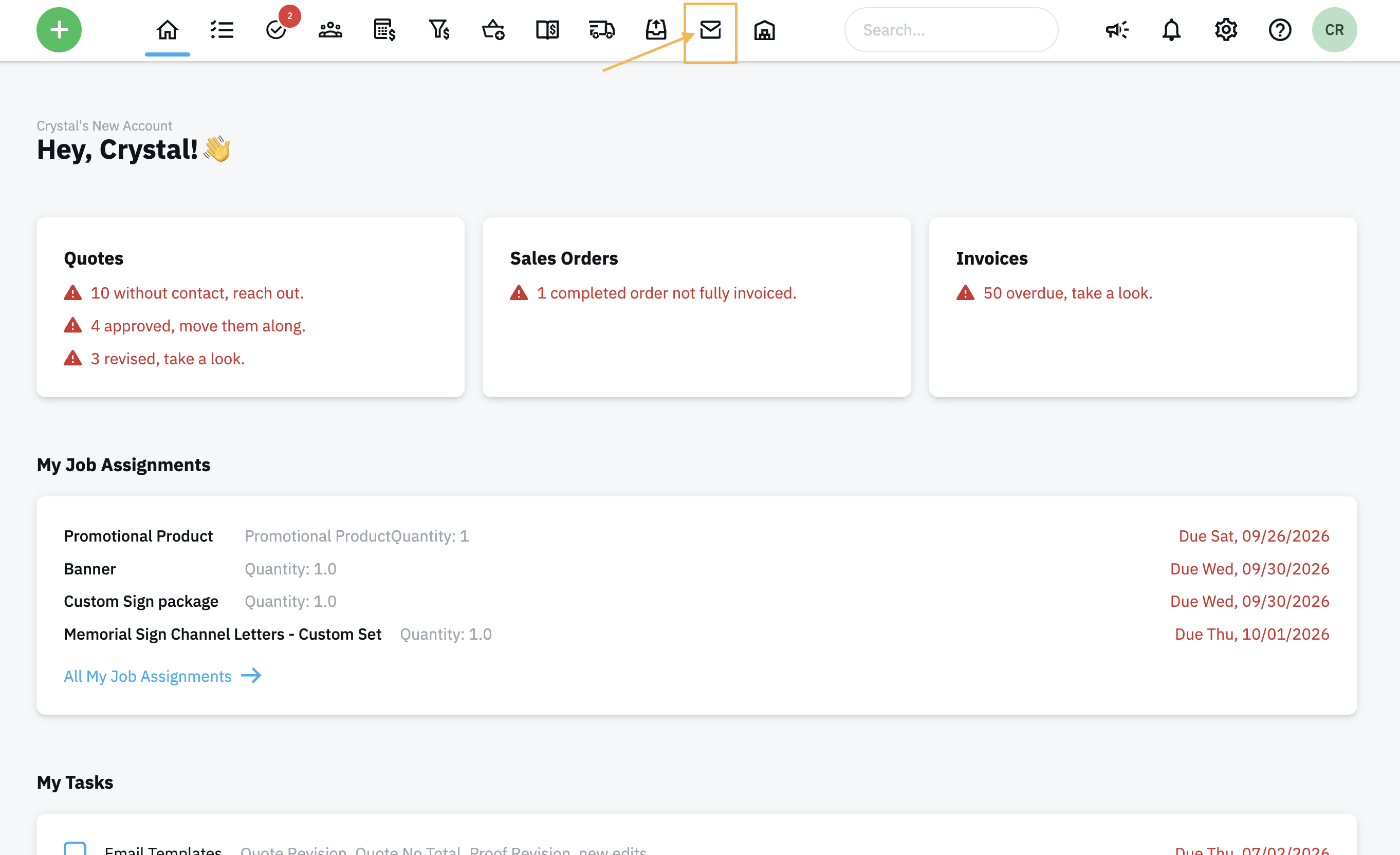
In the top navigation, click the AI Mail icon.
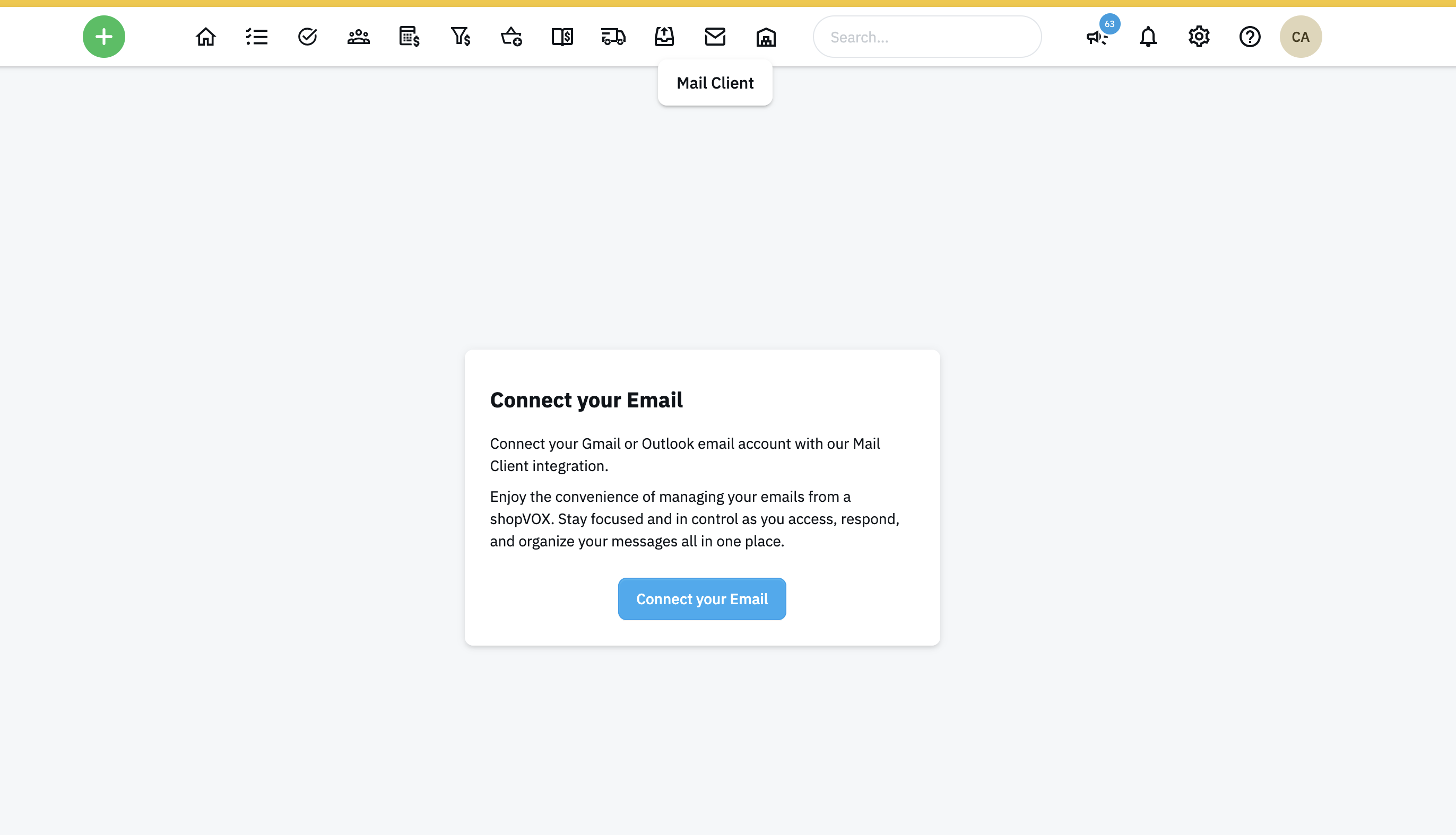
Click Connect your Email.
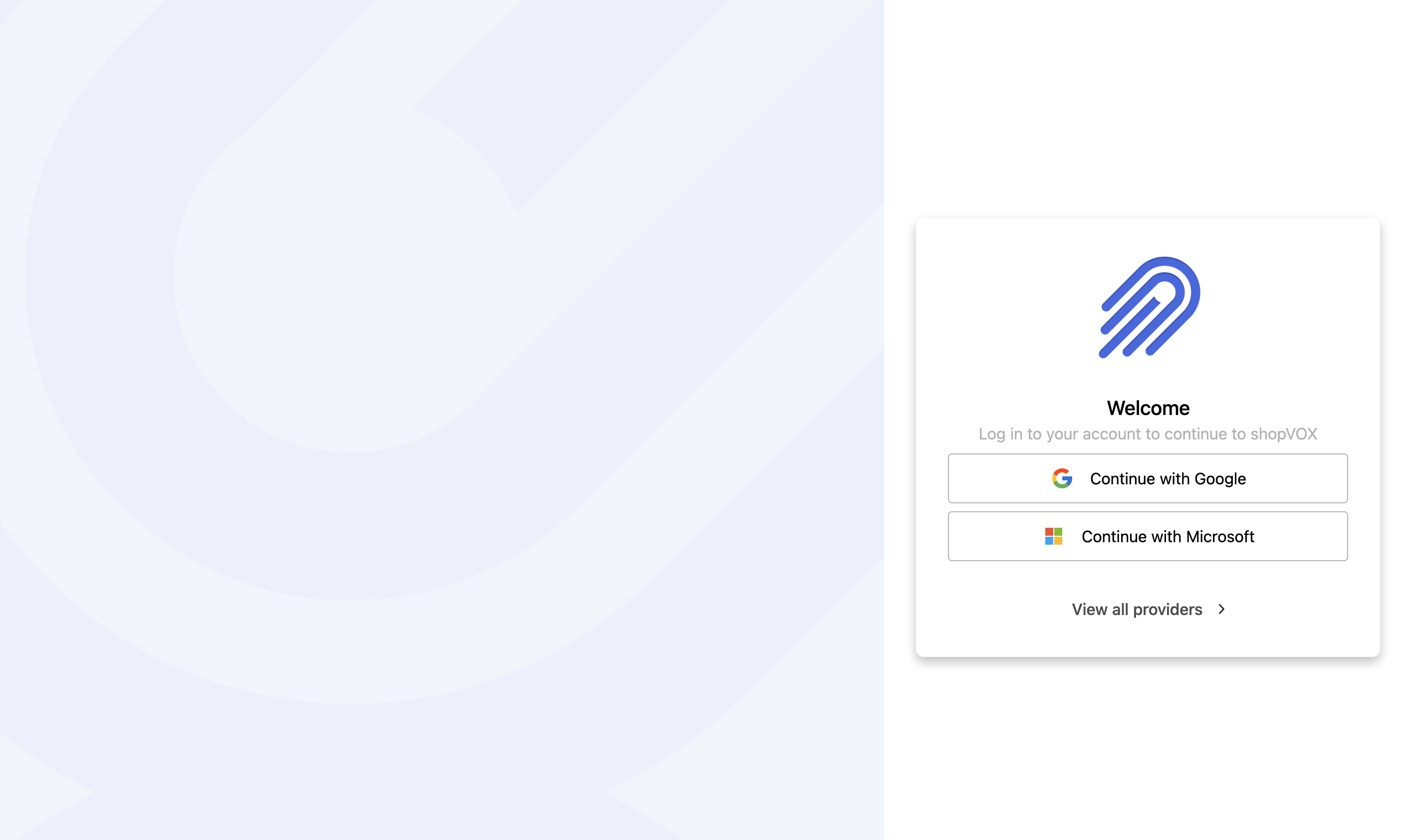
Select Connection method with Google or Microsoft. Or emails can be added via IMAP settings.
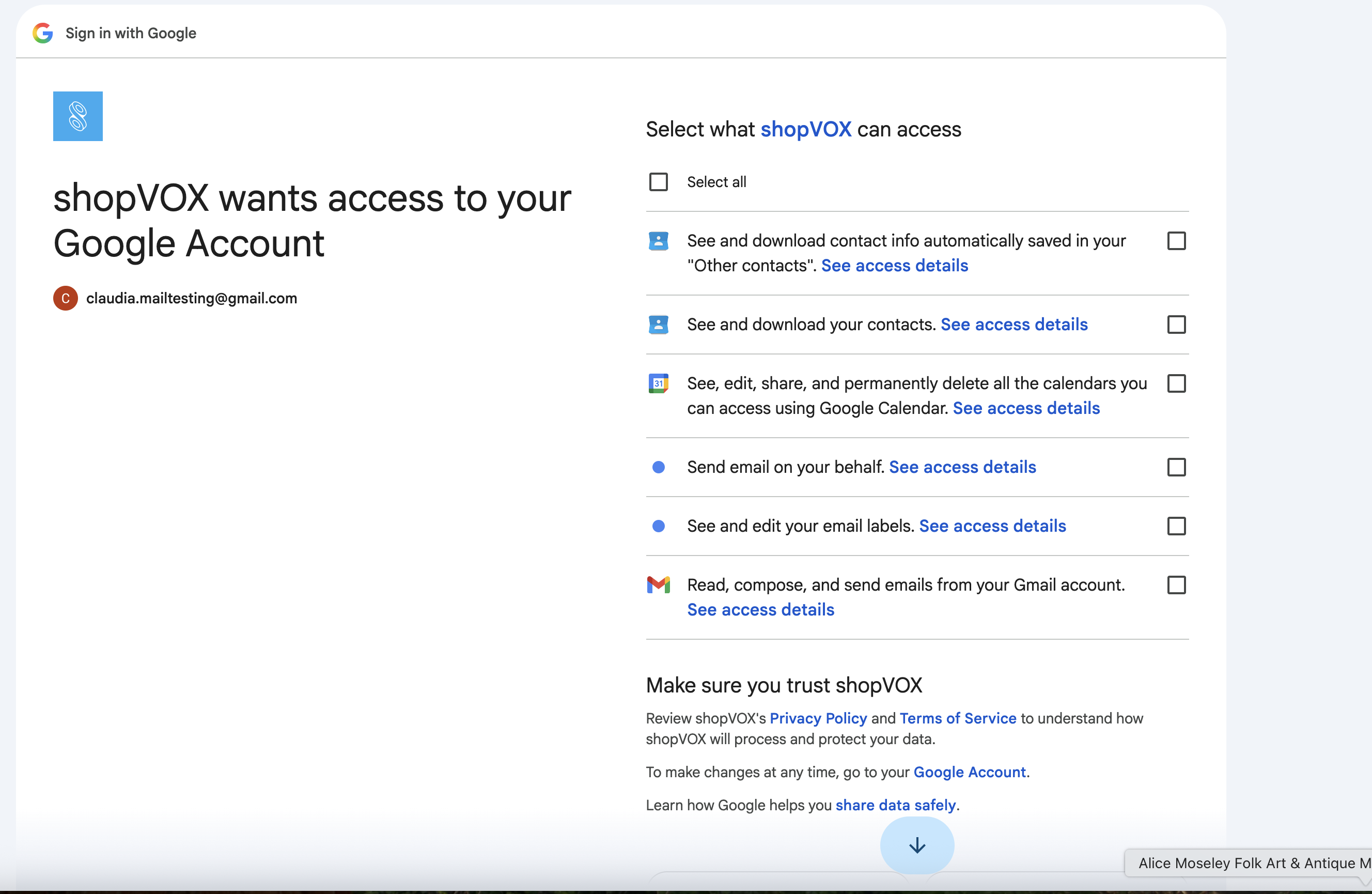
Select your provider (Google or Microsoft) and complete the sign-in and permission steps.
Once verified, your inbox loads in shopVOX Pro.
AI Mail Interface Tour
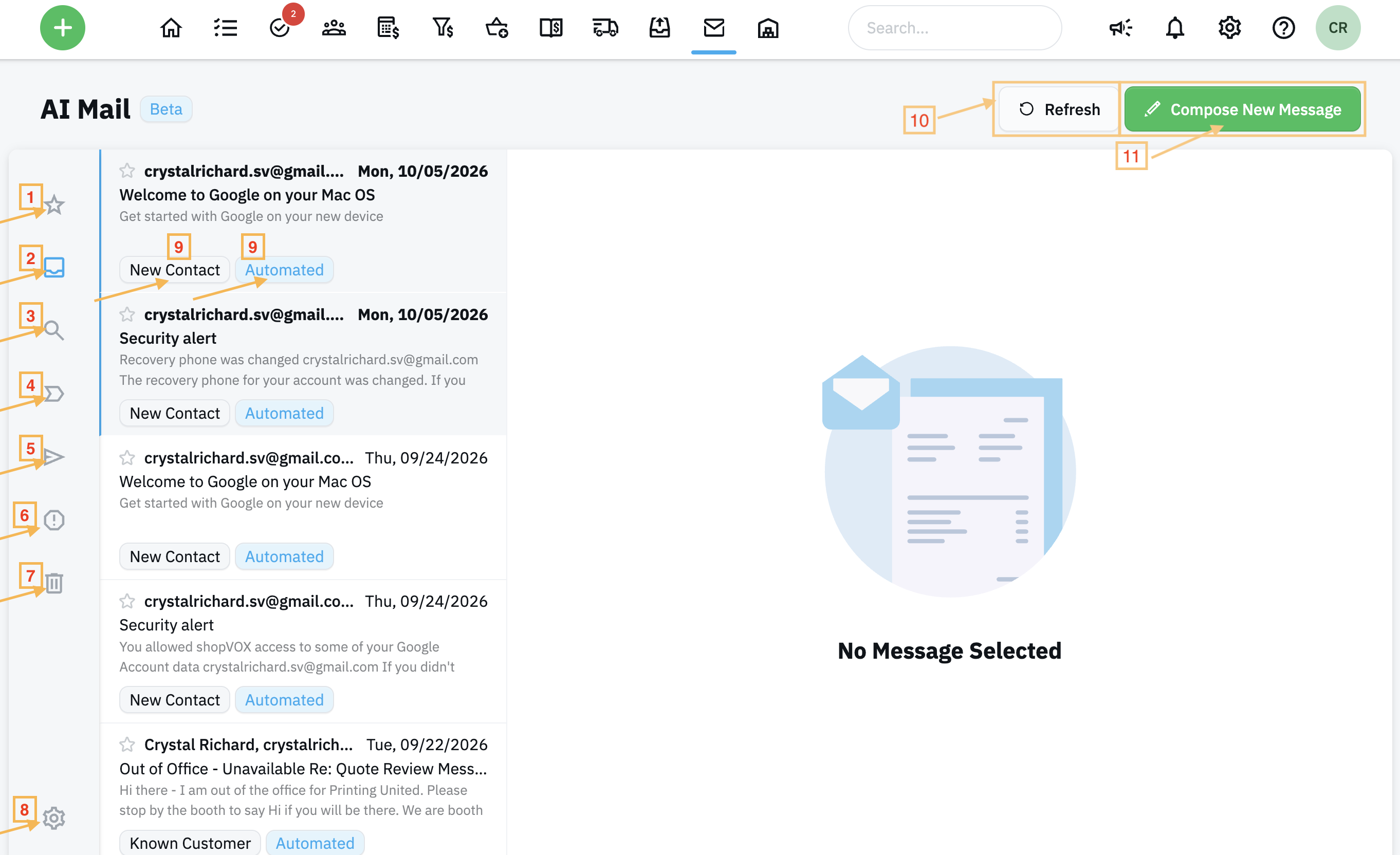
[SEE SCREENSHOT BELOW: AI Mail window with numbered callouts for easy identification]
Starred: emails you've starred
Inbox: all incoming mail
Search: search your email
Important: emails marked important by your email provider
Sent: sent emails
Spam: spam emails
Trash: deleted emails
Settings: manage or disconnect your email connection
AI category labels: what each message is about (NEW)
Category labels that show what the email is about, such as a quote request, payment, invoice, order issue, or service/warranty request.
Refresh: Refresh/Update the inbox on demand
Compose New Message: Create new emails directly from the AI Mail inbox.
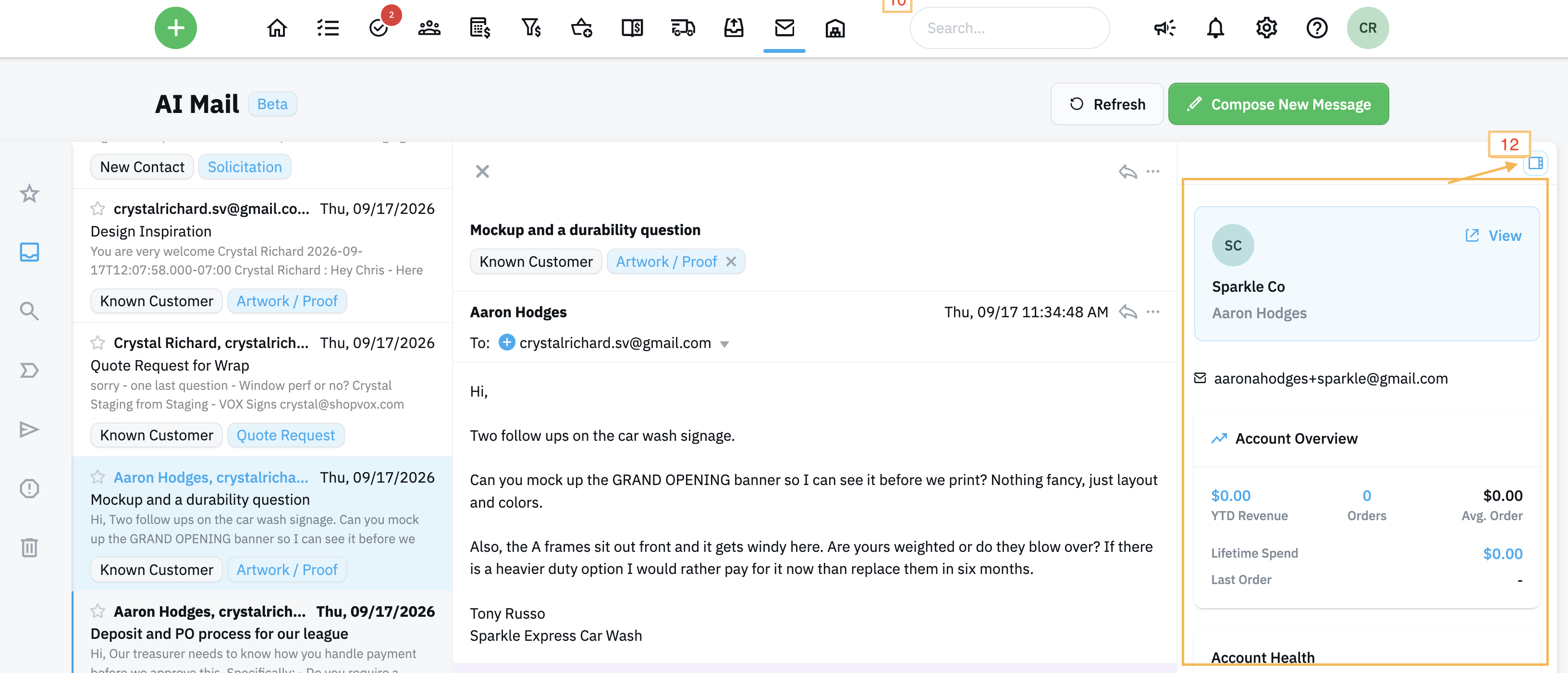
Related Sidebar: Related information only shows once highlighting or selecting a specific email message
AI Categories and Sentiment(NEW)
As your inbox loads, AI Mail scans each message and adds:
A short summary so you can see what needs attention without opening every message.
A sentiment indicator on some messages, showing the customer's tone (for example, happy or frustrated).
Tip: Labels and sentiment appear as messages are processed. They may not show on every email. They may change based on actions - linking a customer updates from New Customer to Known Customer.
Using the Related Sidebar(NEW)
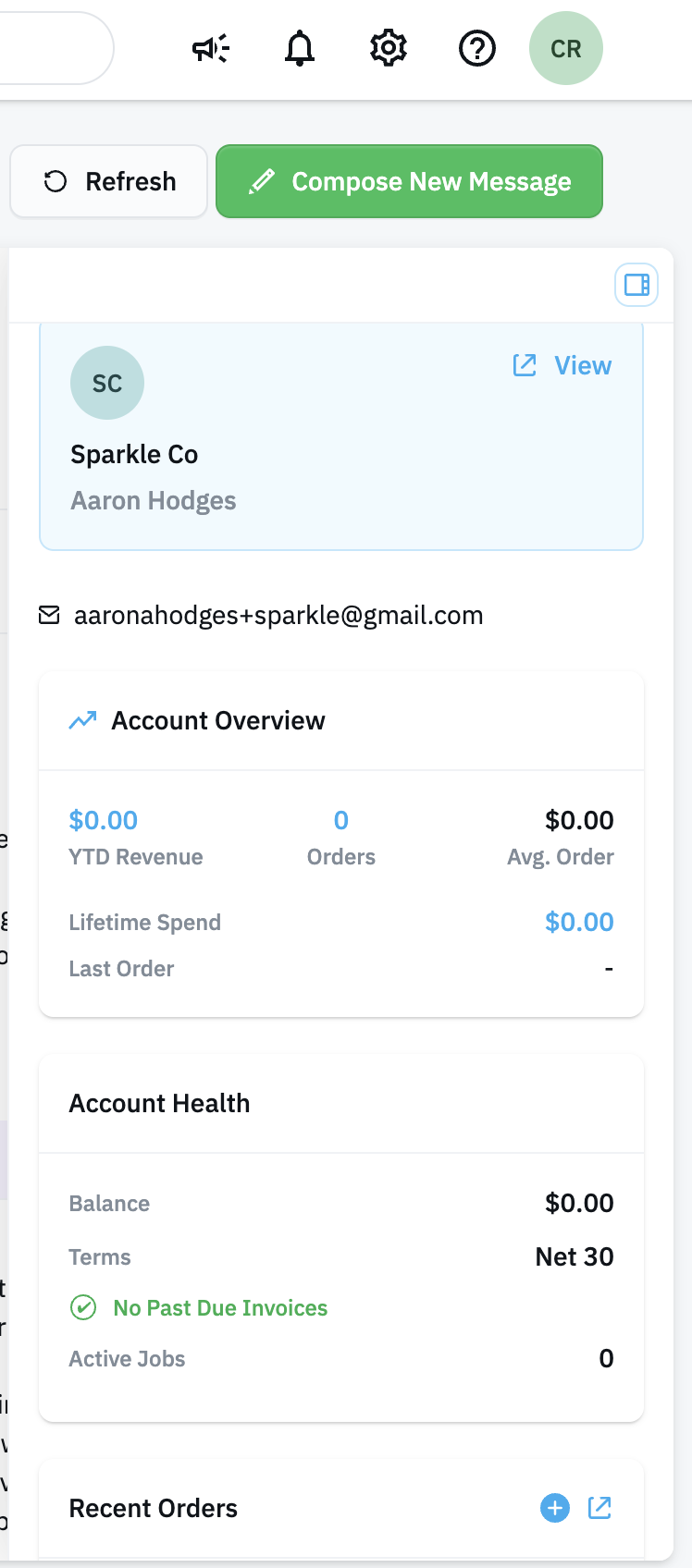
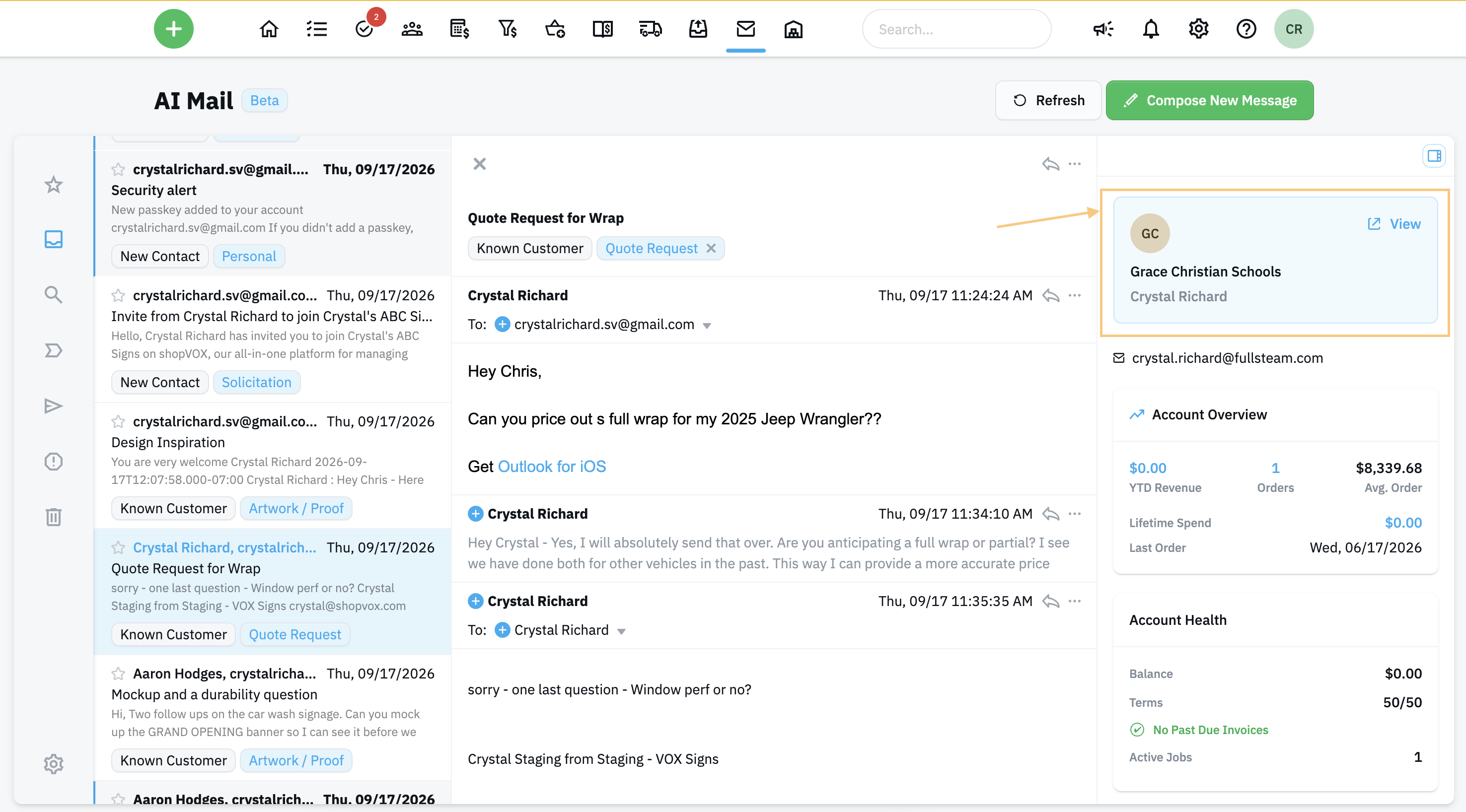
When an email comes from a known customer, AI Mail flags it and users can link emails to Customers and Contacts which shows that customer's details in the Related sidebar. You get the full picture while you read, reply, or talk to the customer on the phone. Scroll up and down to view more related information.
What you'll see
Section
What it shows
Customer details
Industry and location (click the location to open a map)
Contact information
Phone and email, so you can quickly call or email the contact
Account overview
Year-to-date revenue, number of orders, and average order value
Account health
Past due invoices and a retention score that shows how healthy the customer relationship is
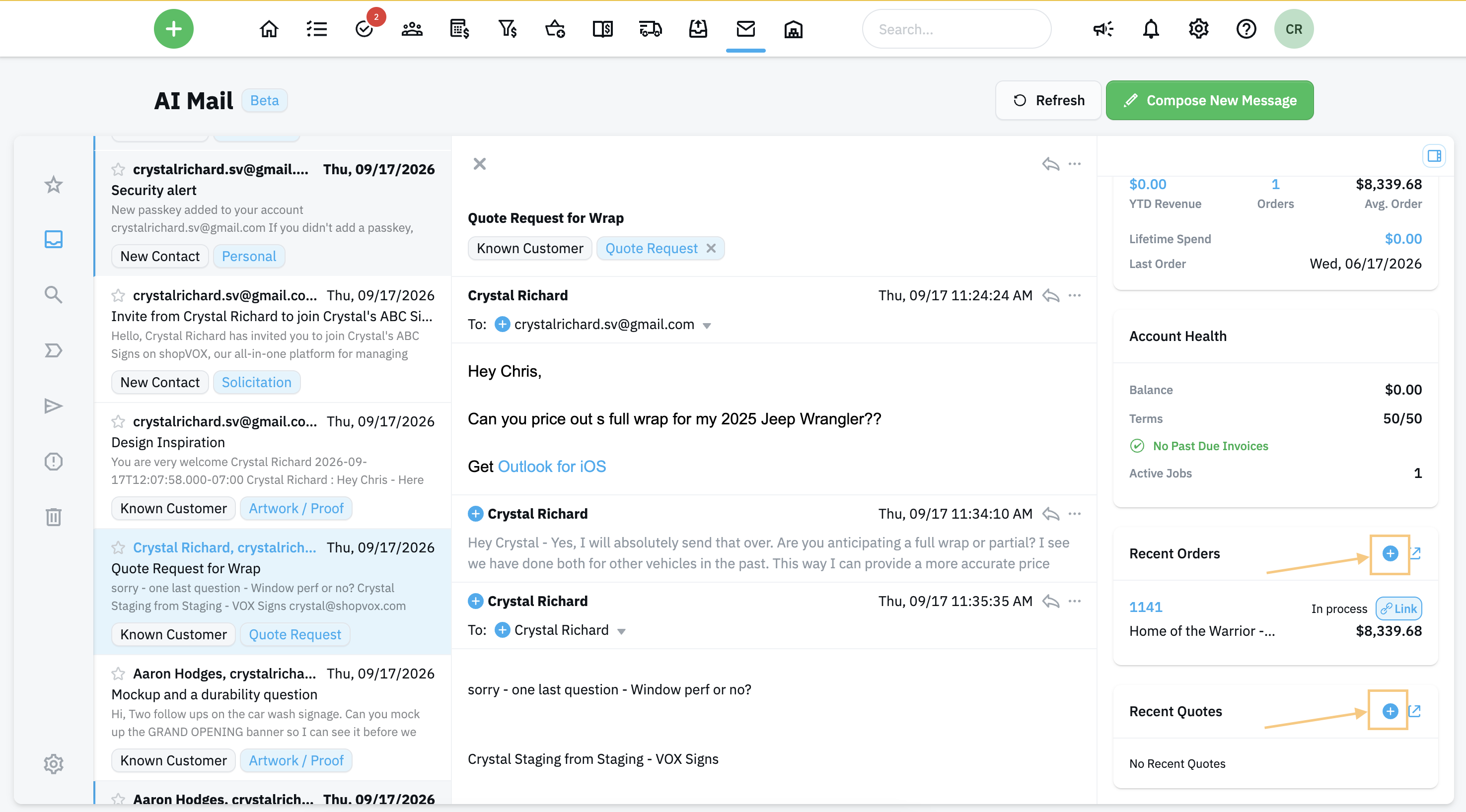
Recent orders
Click any order to open it
Recent quotes
Click any quote to open it
Link an email to a customer, contact, or transaction
Open the email.
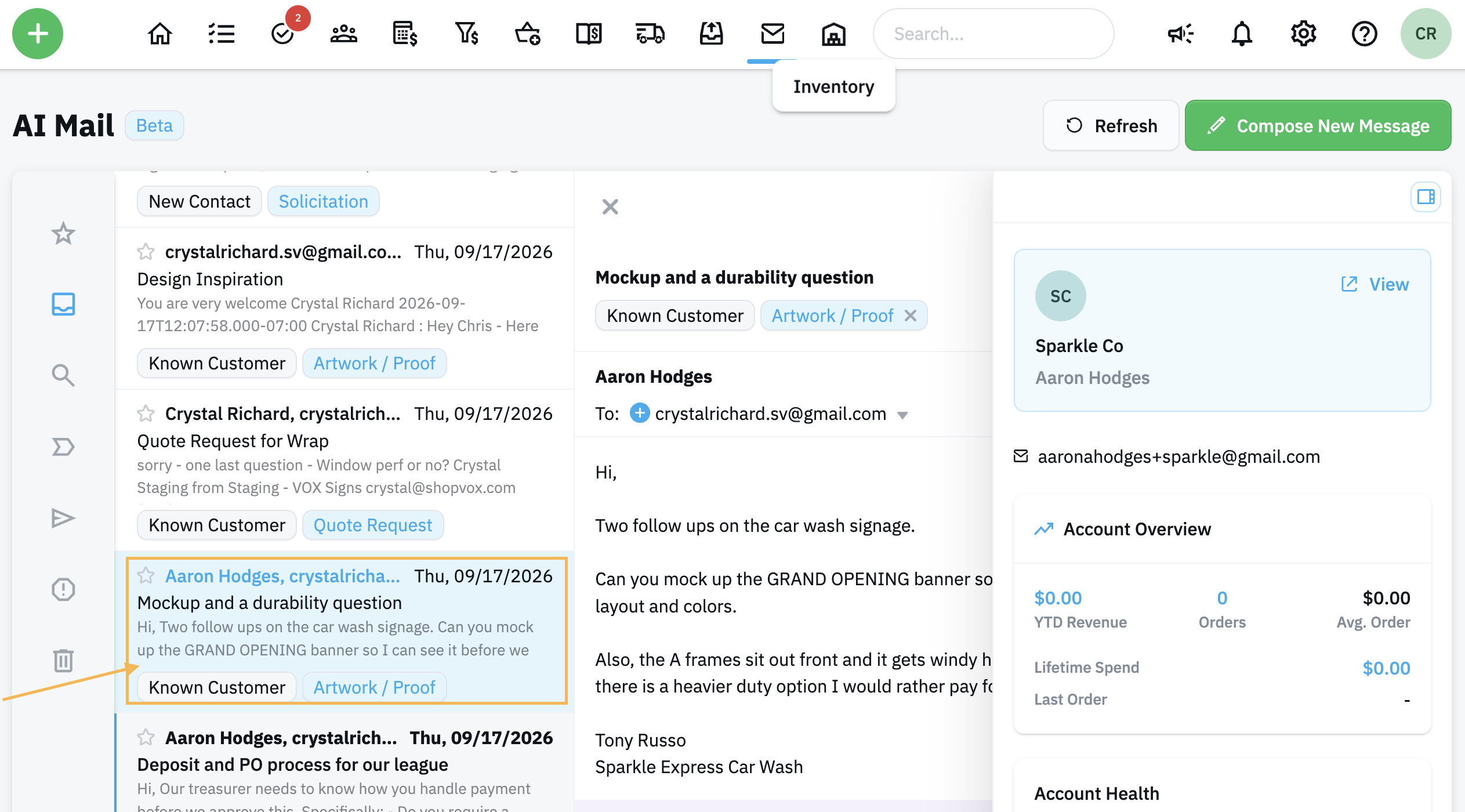
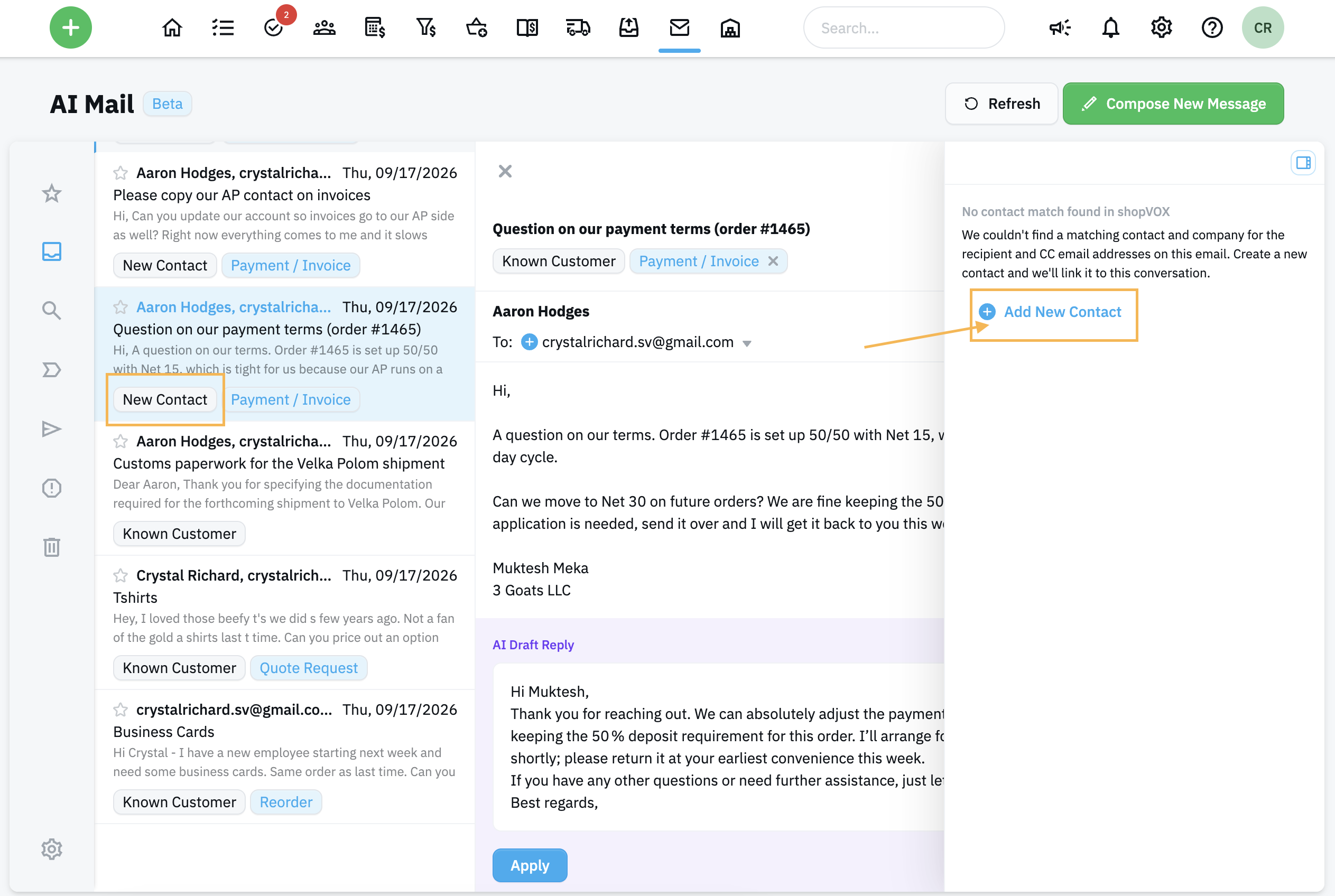
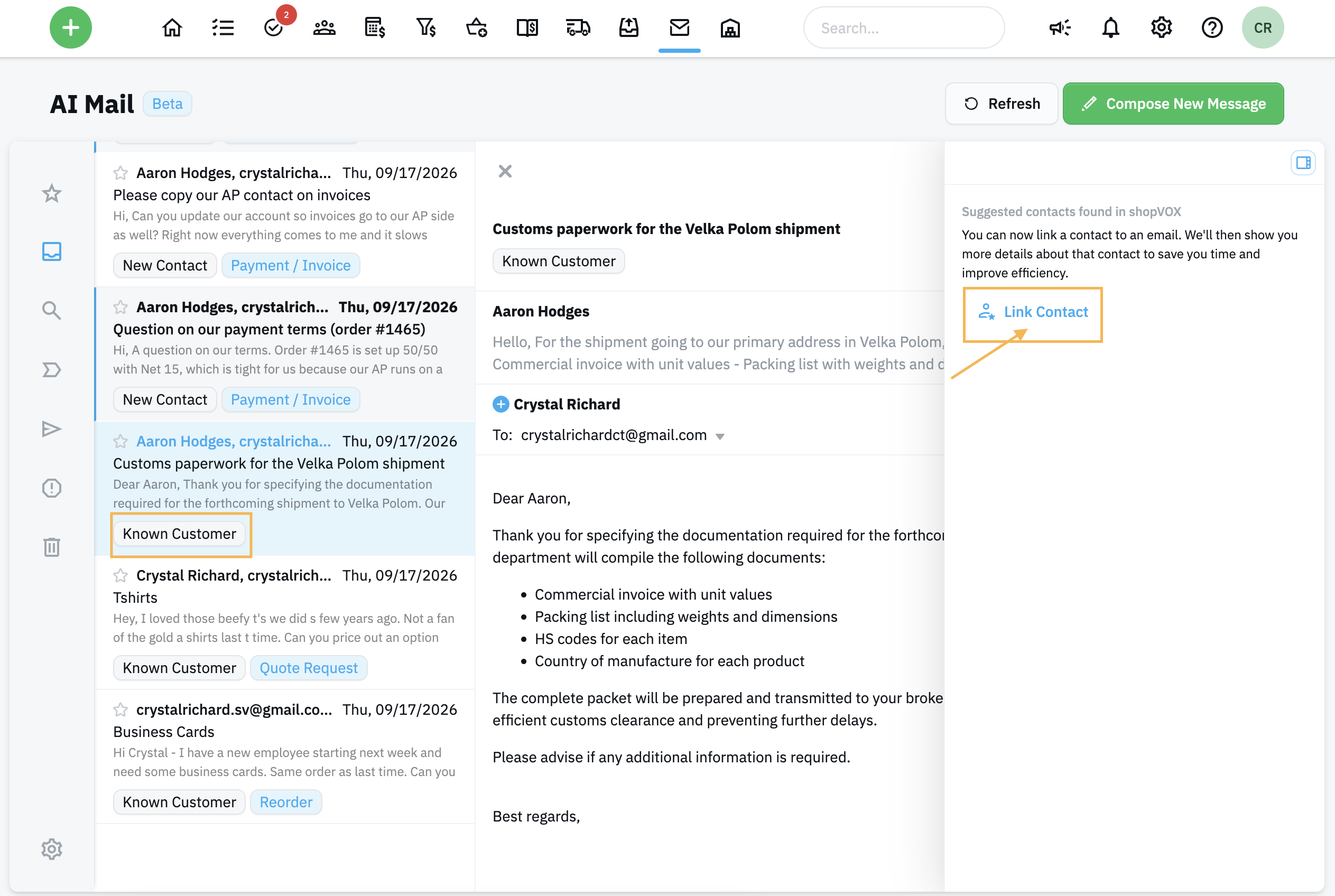
Click the blue Link button for Known Contacts, or Add New Contact Option. New Contact = Add New Contact button
Known Customer = Link Contact
Search for and select the customer, contact, or transaction.
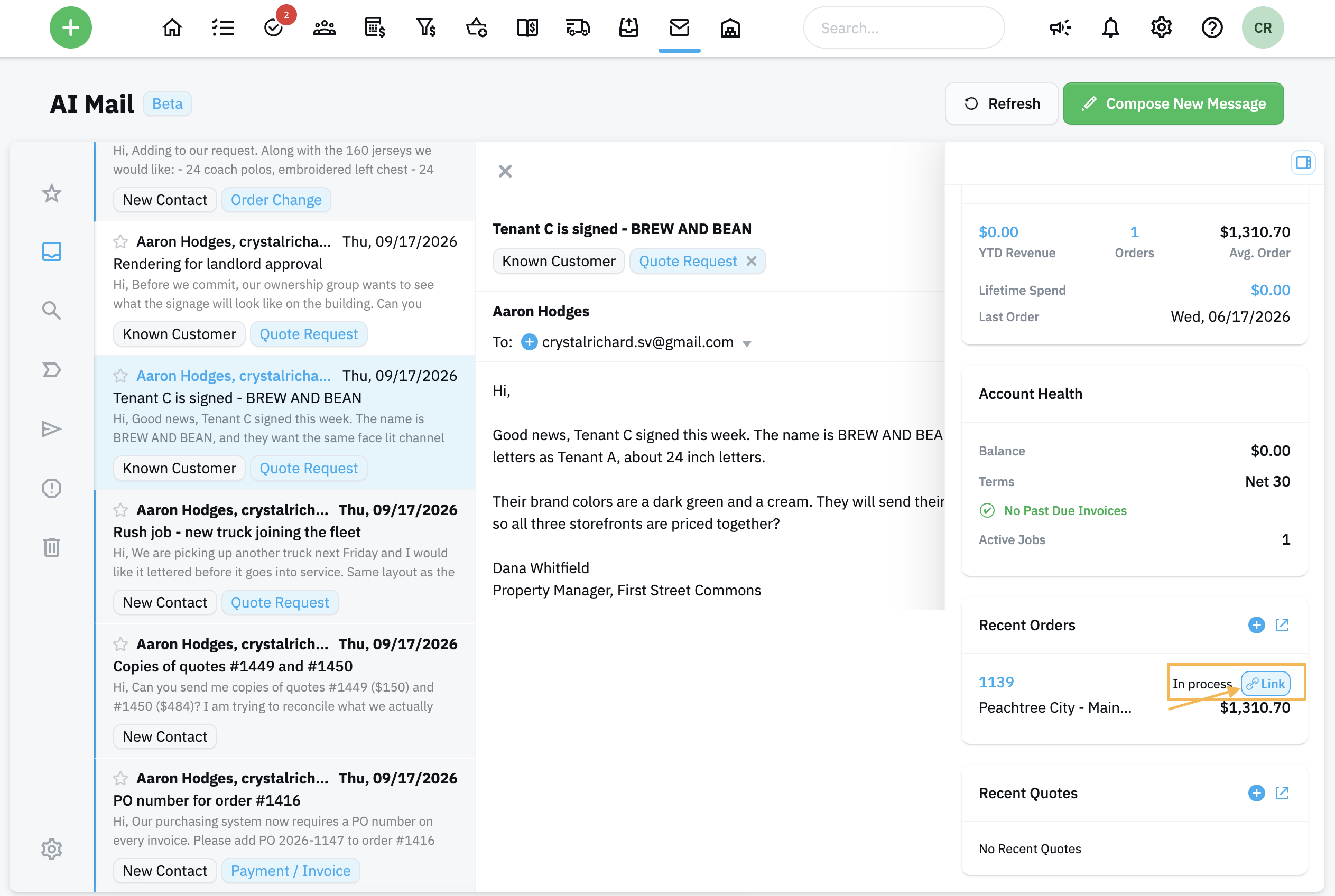
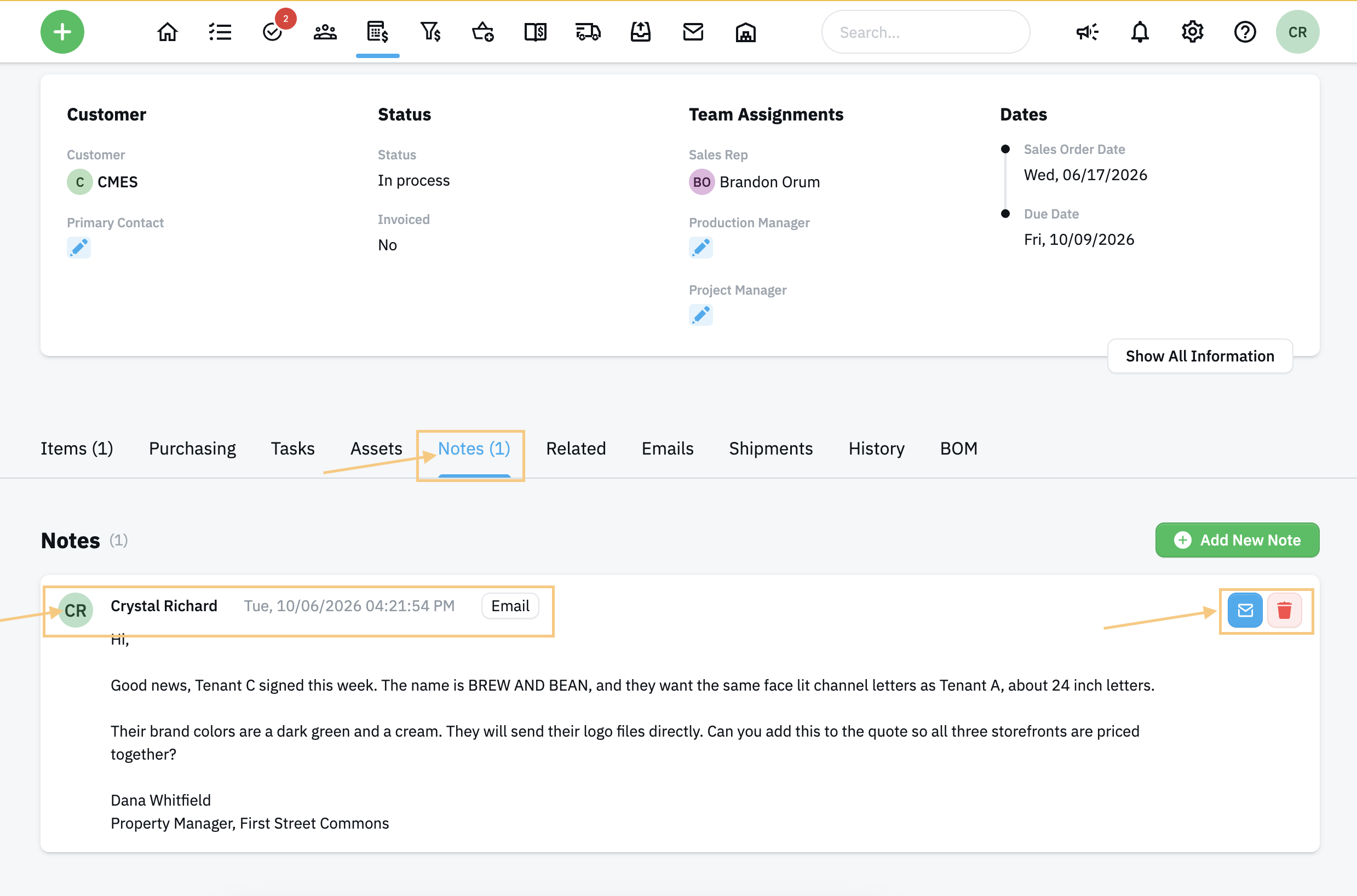
Once the email is linked to a transaction, The email is saved to the Notes section of the linked record. Click the blue link icon to link this email to a specific transaction.
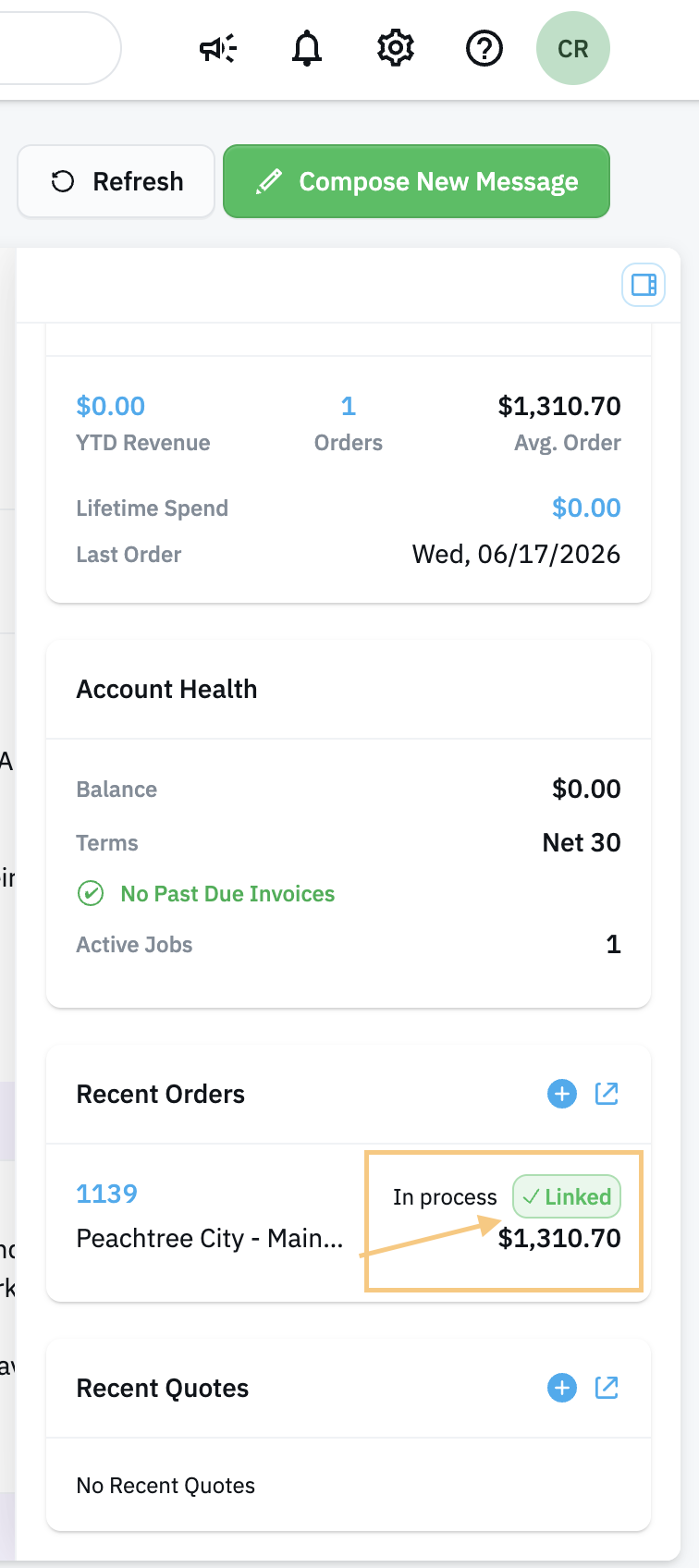
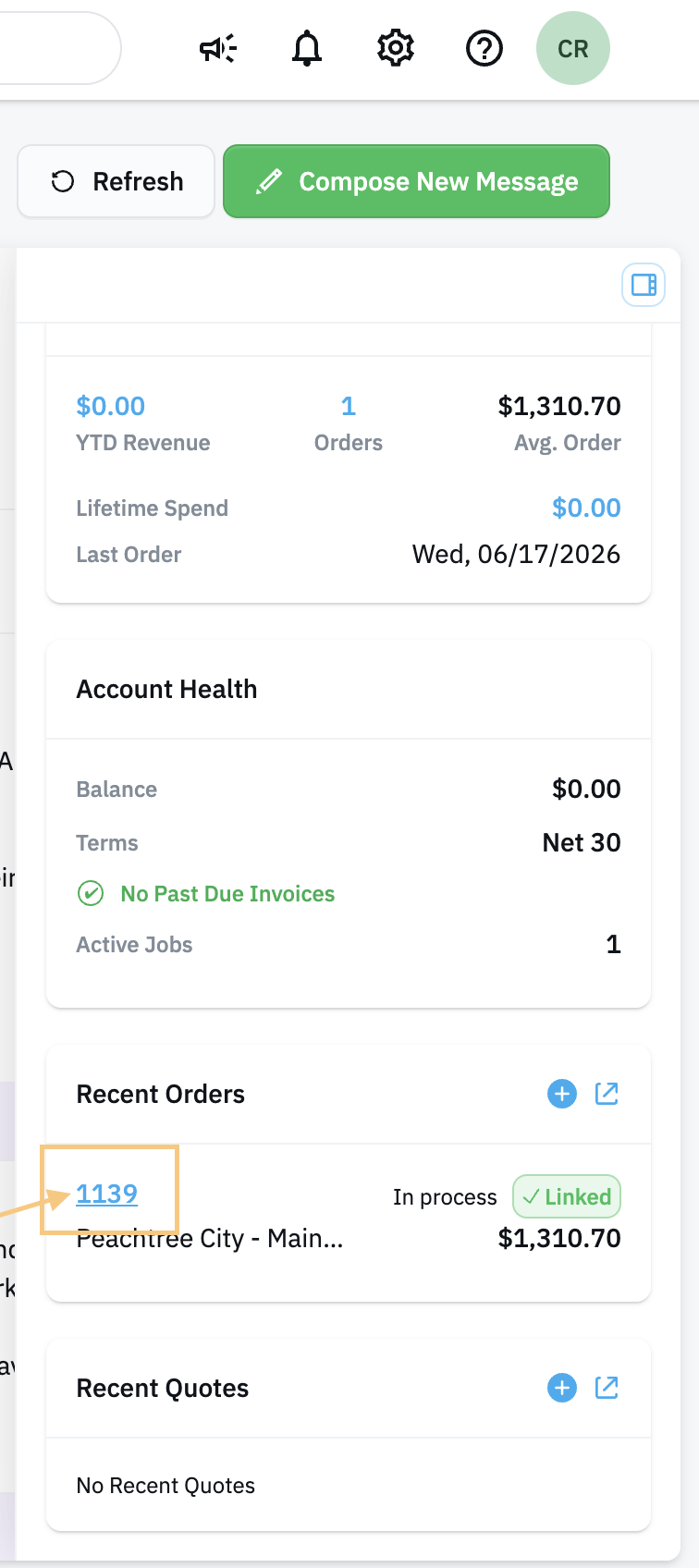
Once properly linked, the button updates to Green and the text label of the button updates from "Link" to "Linked".
Click on the blue order number to view the note now linked to the transaction. (The linked transaction opens in a new tab)
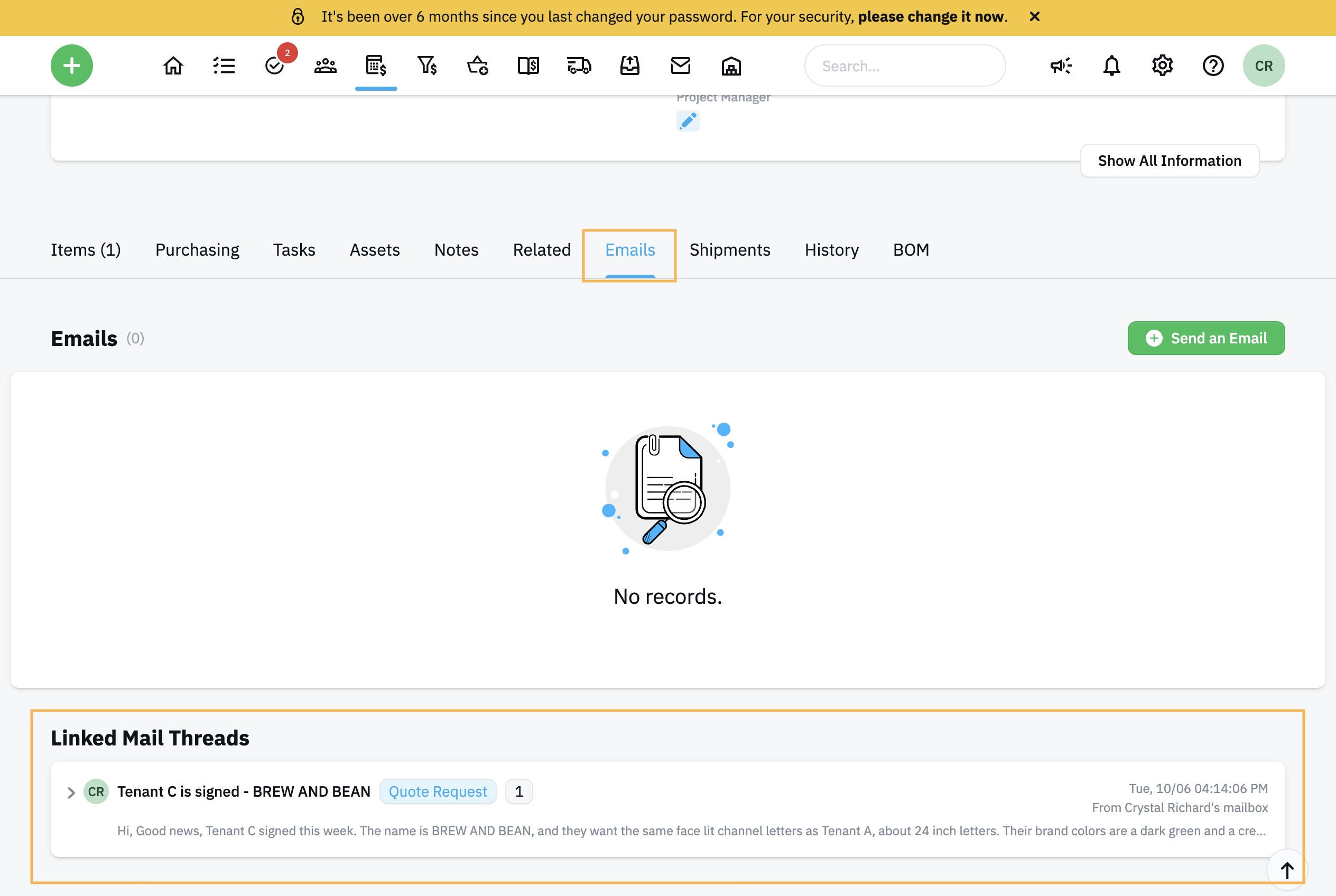
View the linked Email Thread under the Email tab, then Linked Email Threads.
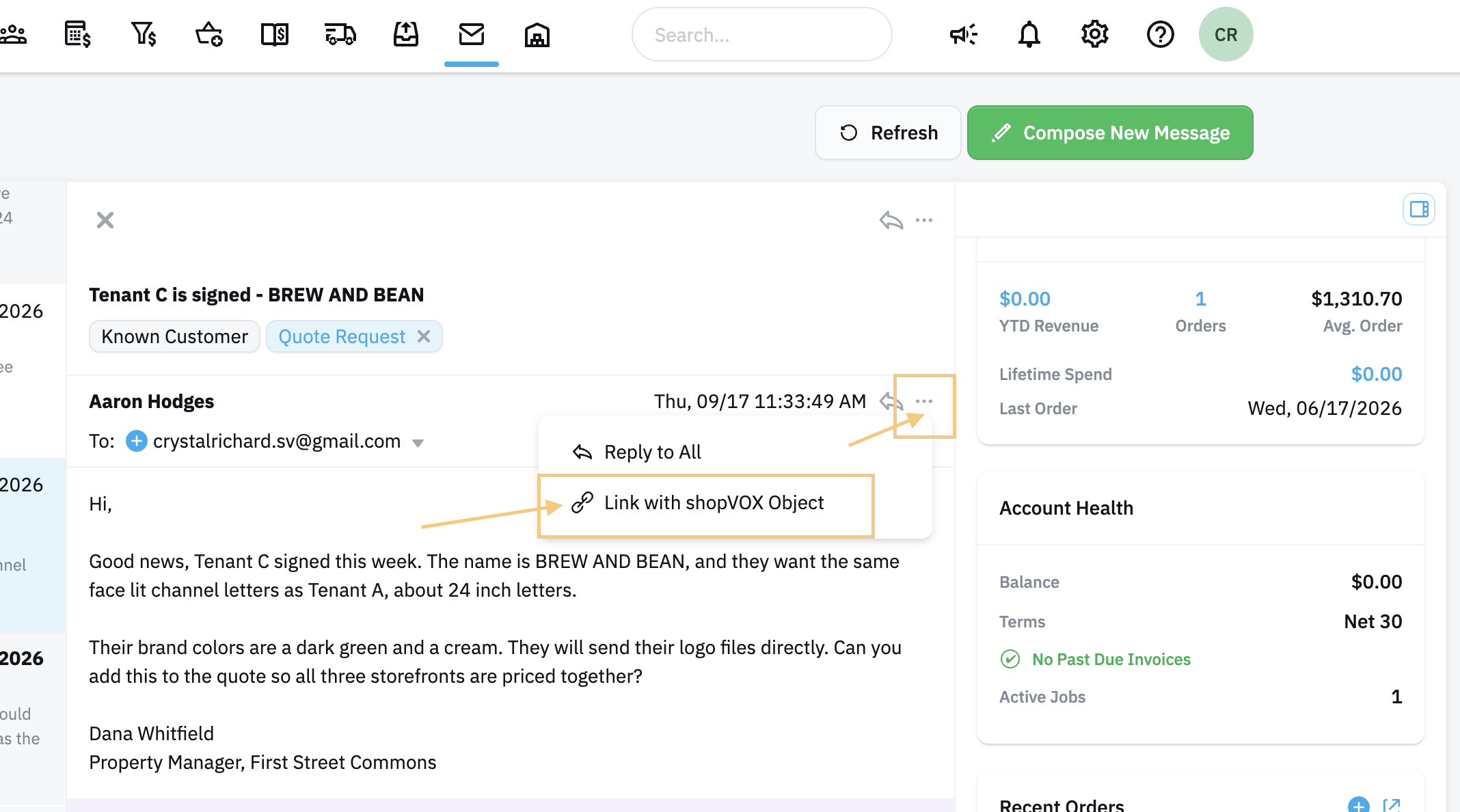
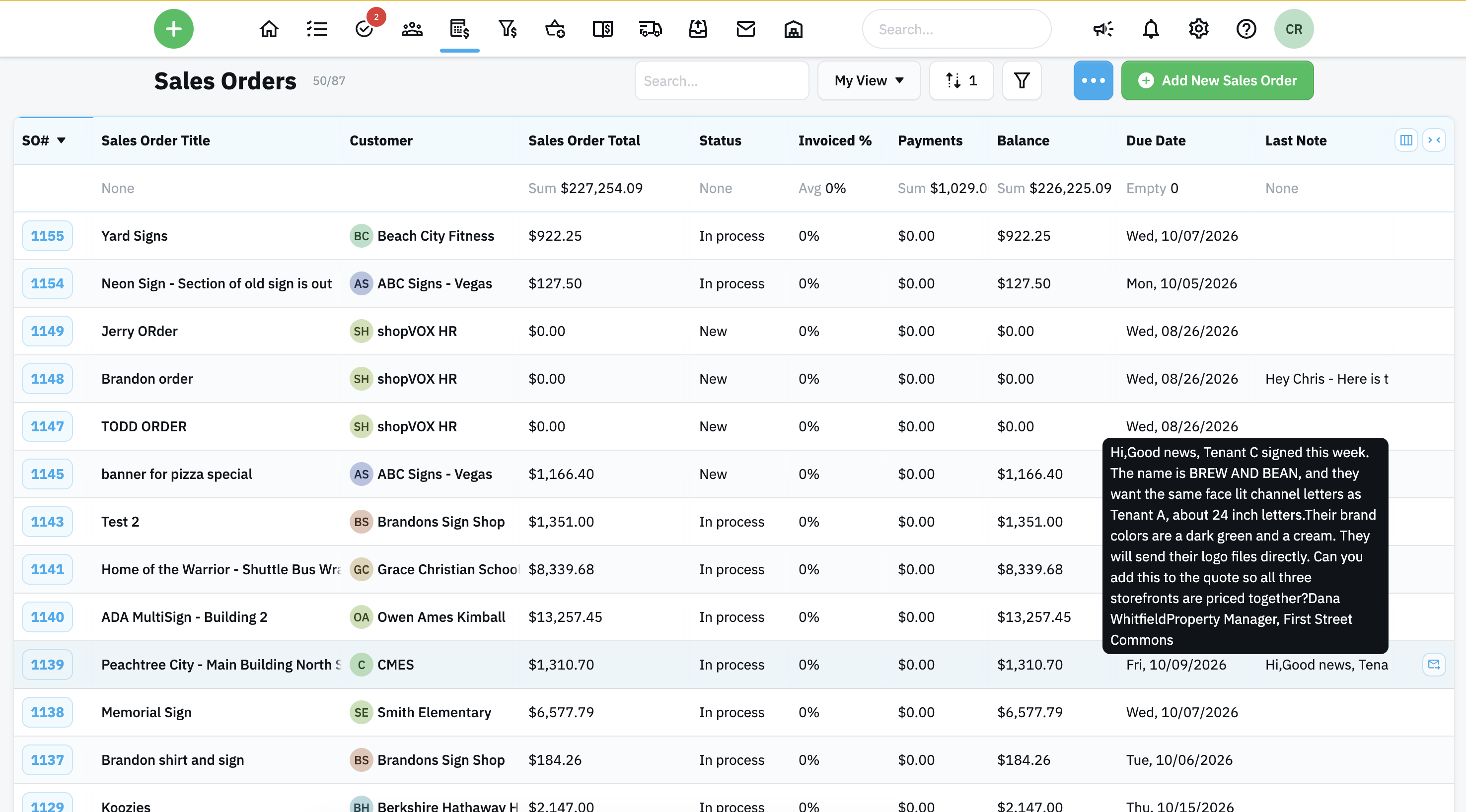
When the email is so important it should show in the Notes tab - especially on a quote where the last note is visible on the summary screen - use the small action button in the email to link to shopVOX Object.
View the notes on the Note tab and anywhere you have the column for Last Note or Note visible. This is also an interactive screen to reply back to an existing thread or delete the email or thread. Clicking the email button sends a new reply to the existing email thread.View from Sales Order Summary Screen. If the column is cut short, the entire message is displayed in the black message bubble. (This function works for Quotes, Sales Orders, Invoices, and Jobs)
Create a new transaction from an email
Open the email and confirm the customer shows in the Related sidebar. If not, follow steps above to link the email to a contact first.
Click the blue + icon next to the transaction type you want to create (for example, a quote or sales order).
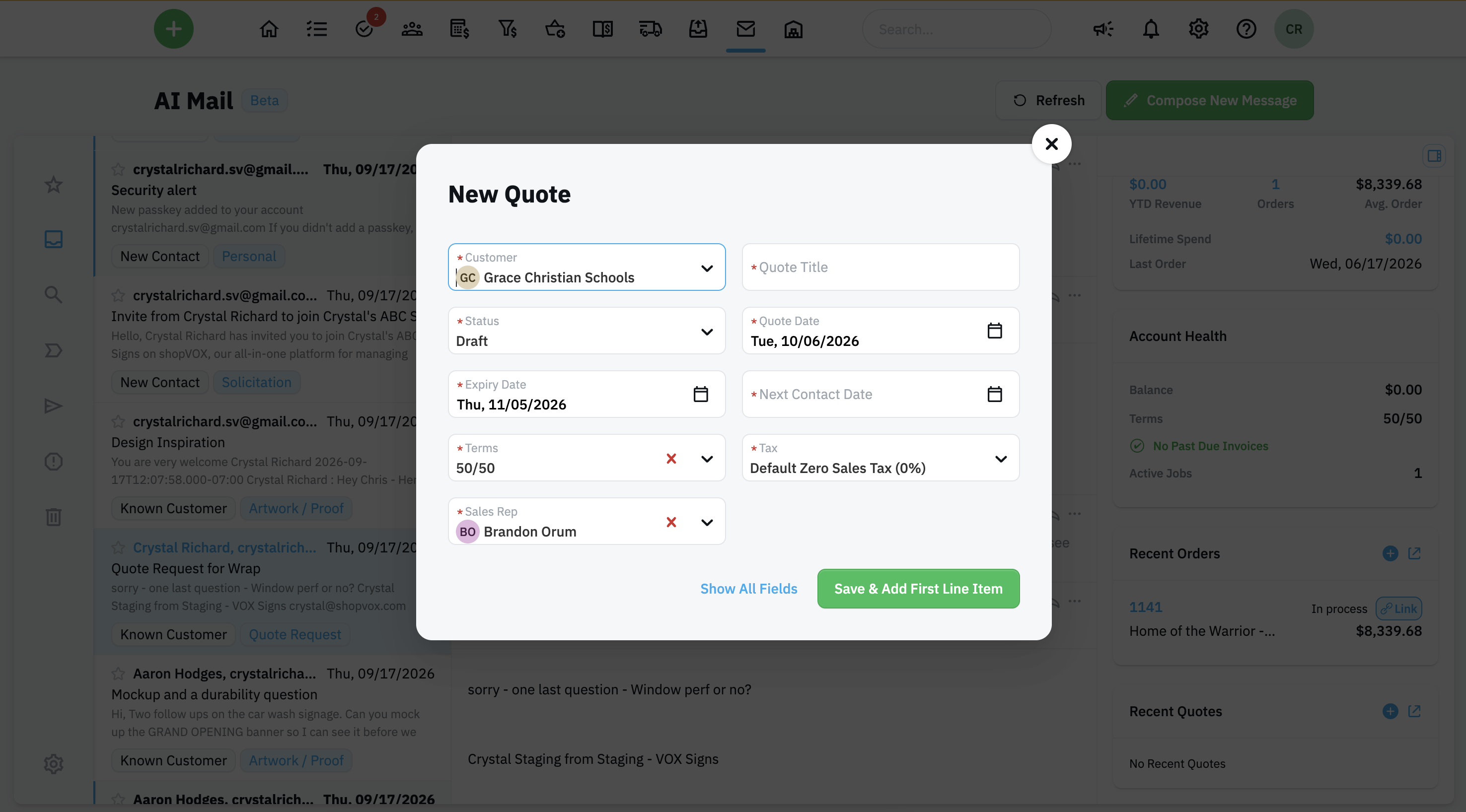
The new transaction opens for that customer. Fill in the details and click Save.
To customize the New Quote shortcut menu screen as shown here, please visit Settings -> Forms -> Quote (or any other type of forms) and set all desired fields to REQUIRED to illustrate the field on the shortcut screen. Select both checkboxes to set a field as required. Remember to click the button "Update Forms" before leaving the screen.
Add a new customer or contact
If the sender isn't in shopVOX yet:
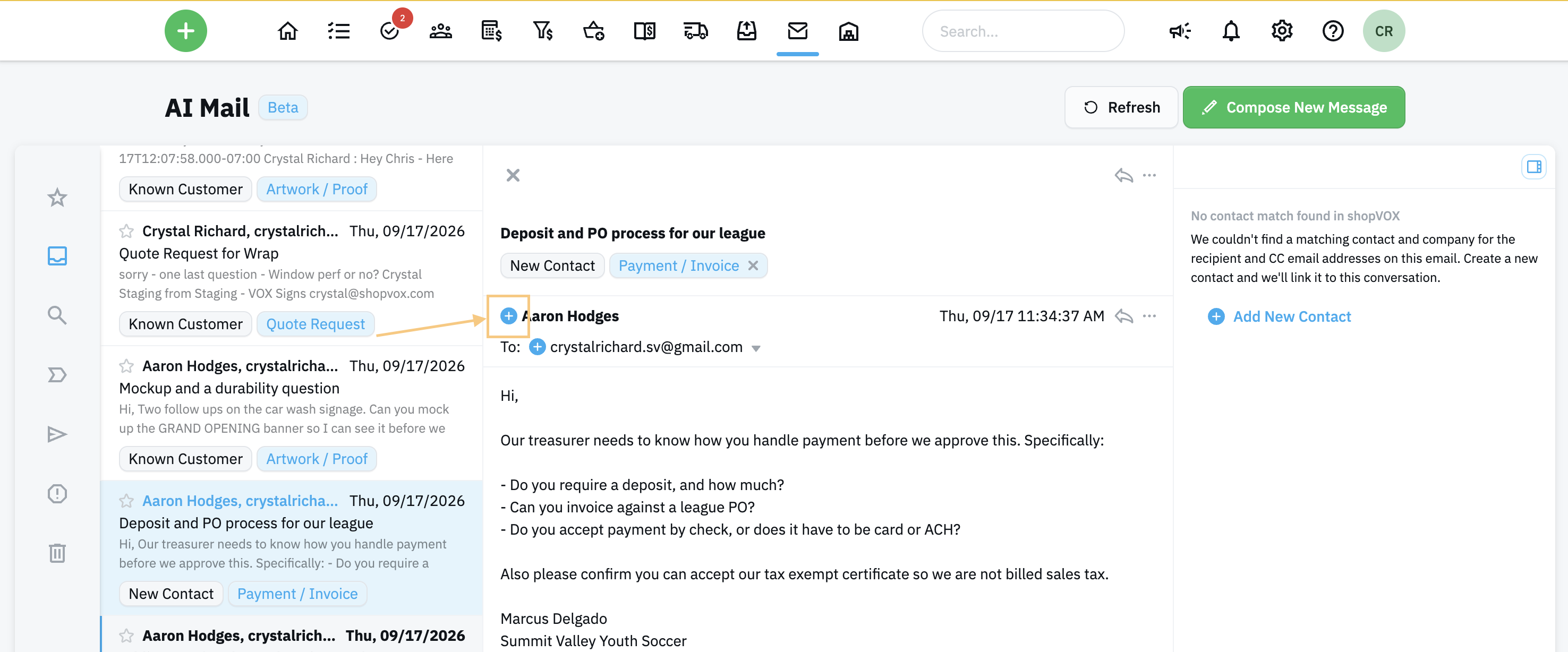
Click the blue + icon next to the sender. Or use the blue text in the Related Sidebar to add the new contact.
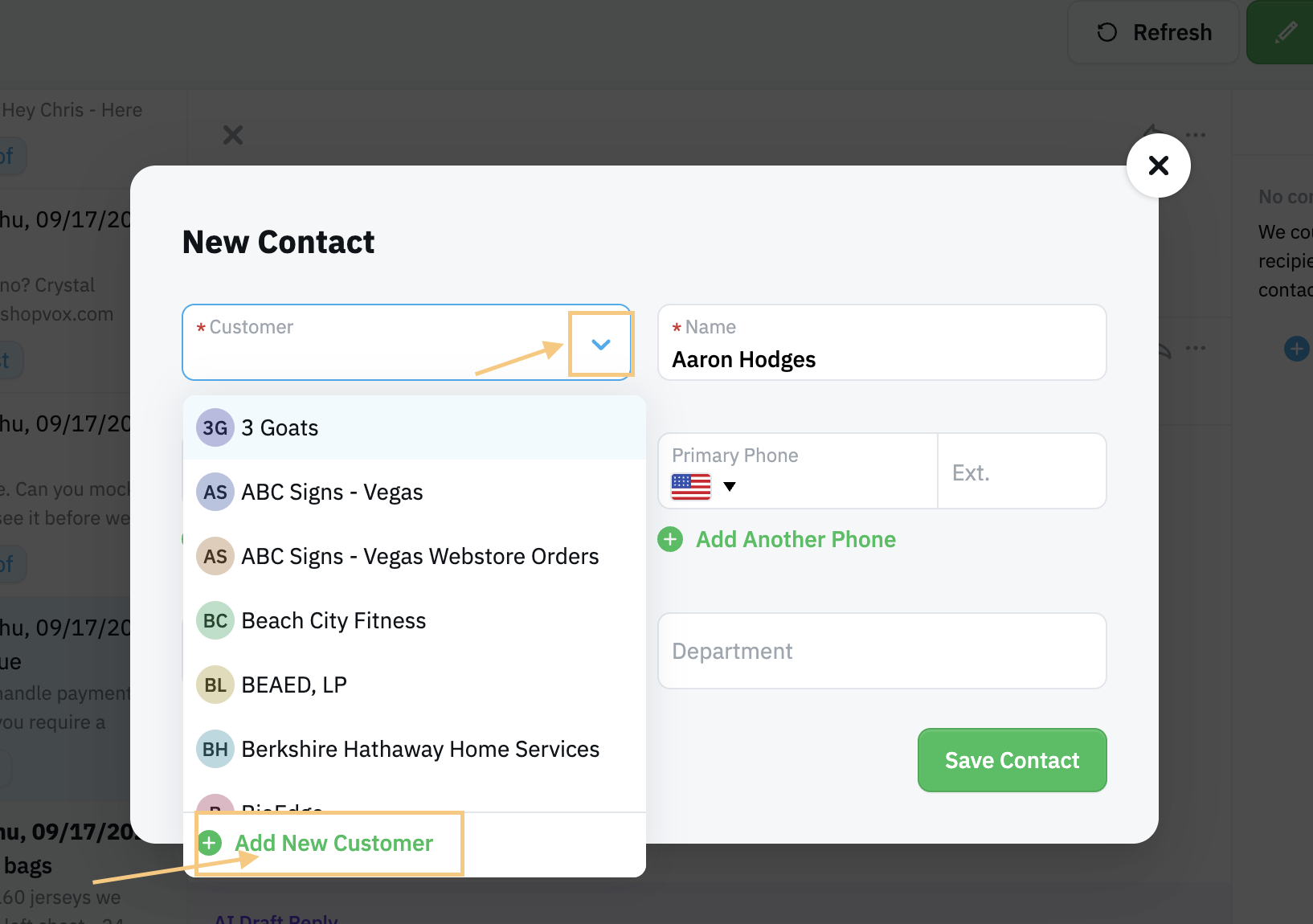
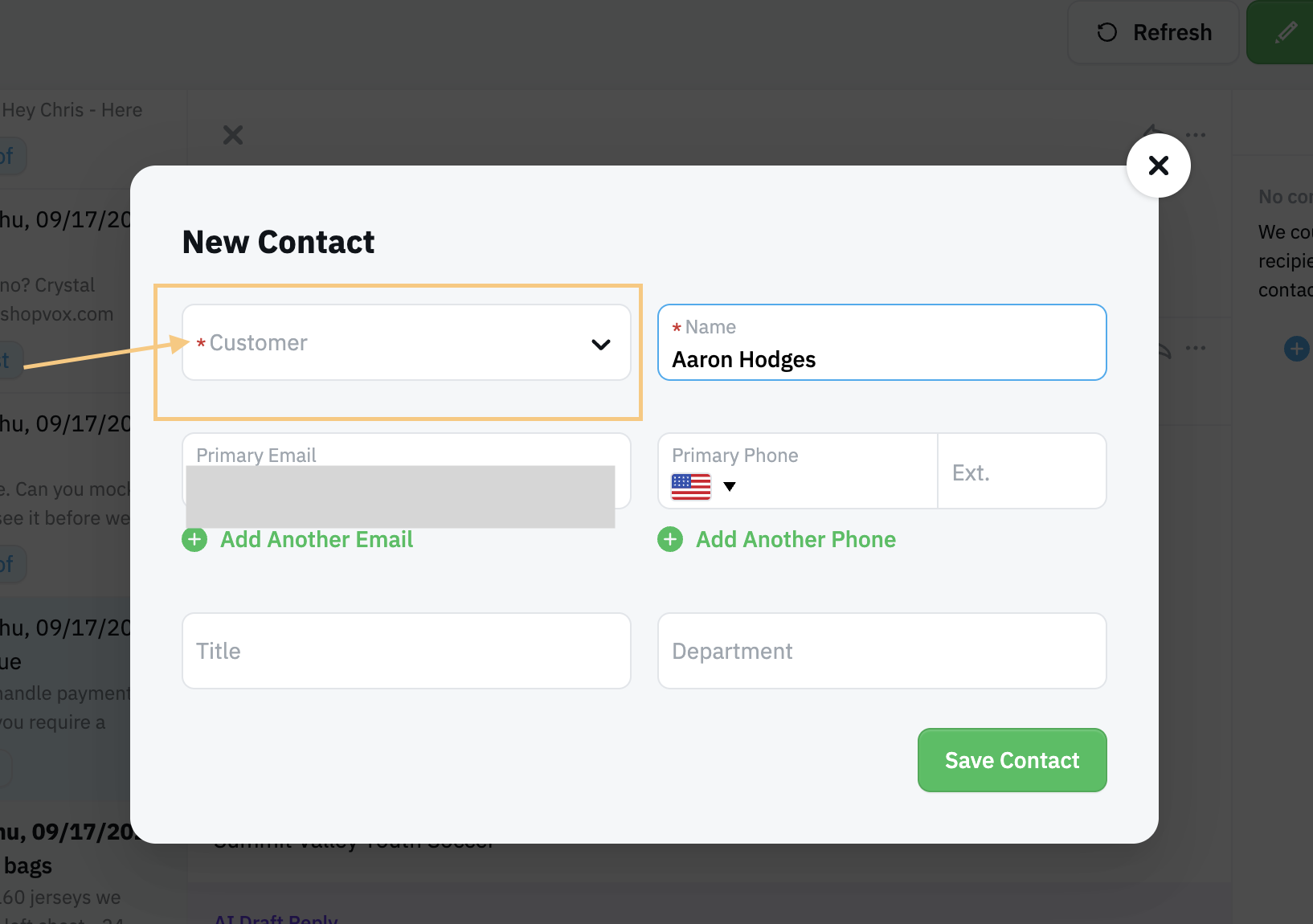
a. If the company doesn't exist yet, add the Customer first by selecting the dropdown arrow and then the text "Add New Customer". *Every contact must belong to a customer, even if that is a person's name and not a true company.
b. Select an Existing Customer from the Dropdown menu if the customer already exists.
Enter the contact's details and click Save Contact.
Writing Replies with AI Writing Tools(NEW)
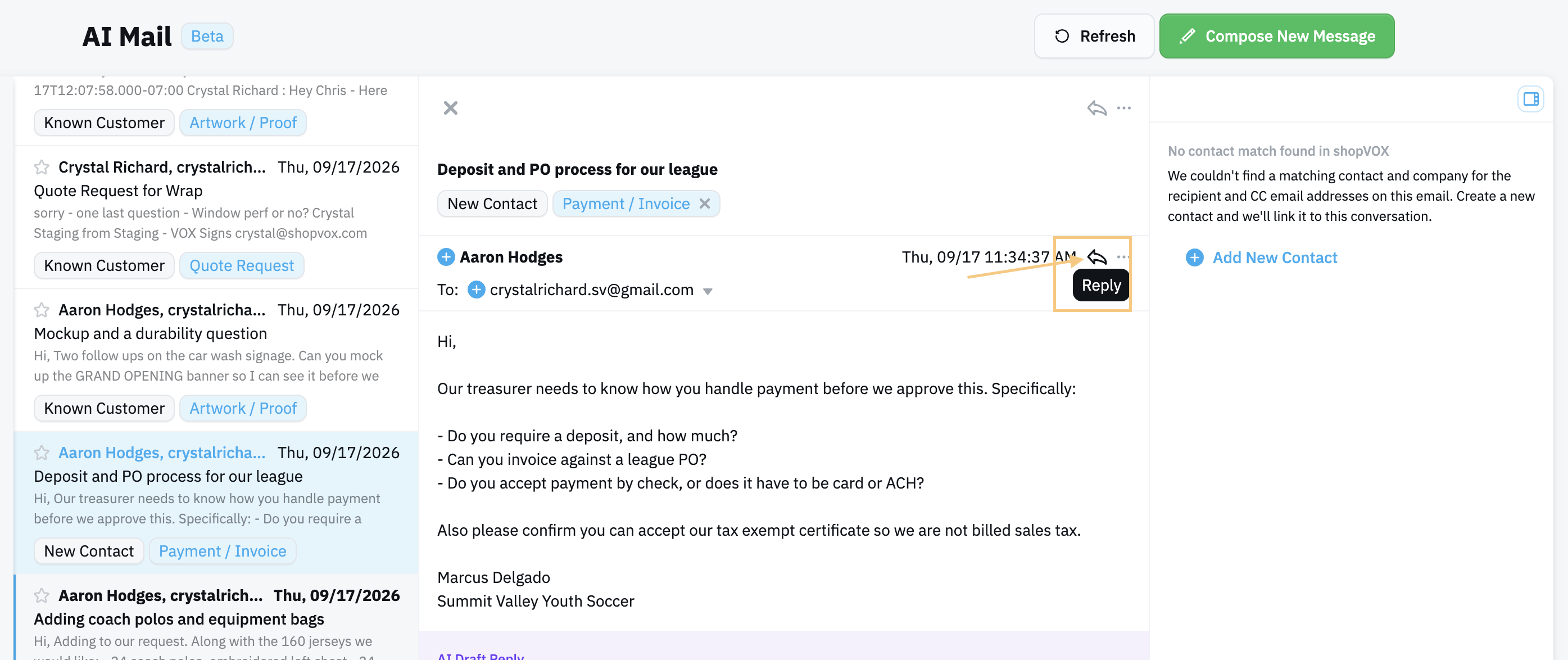
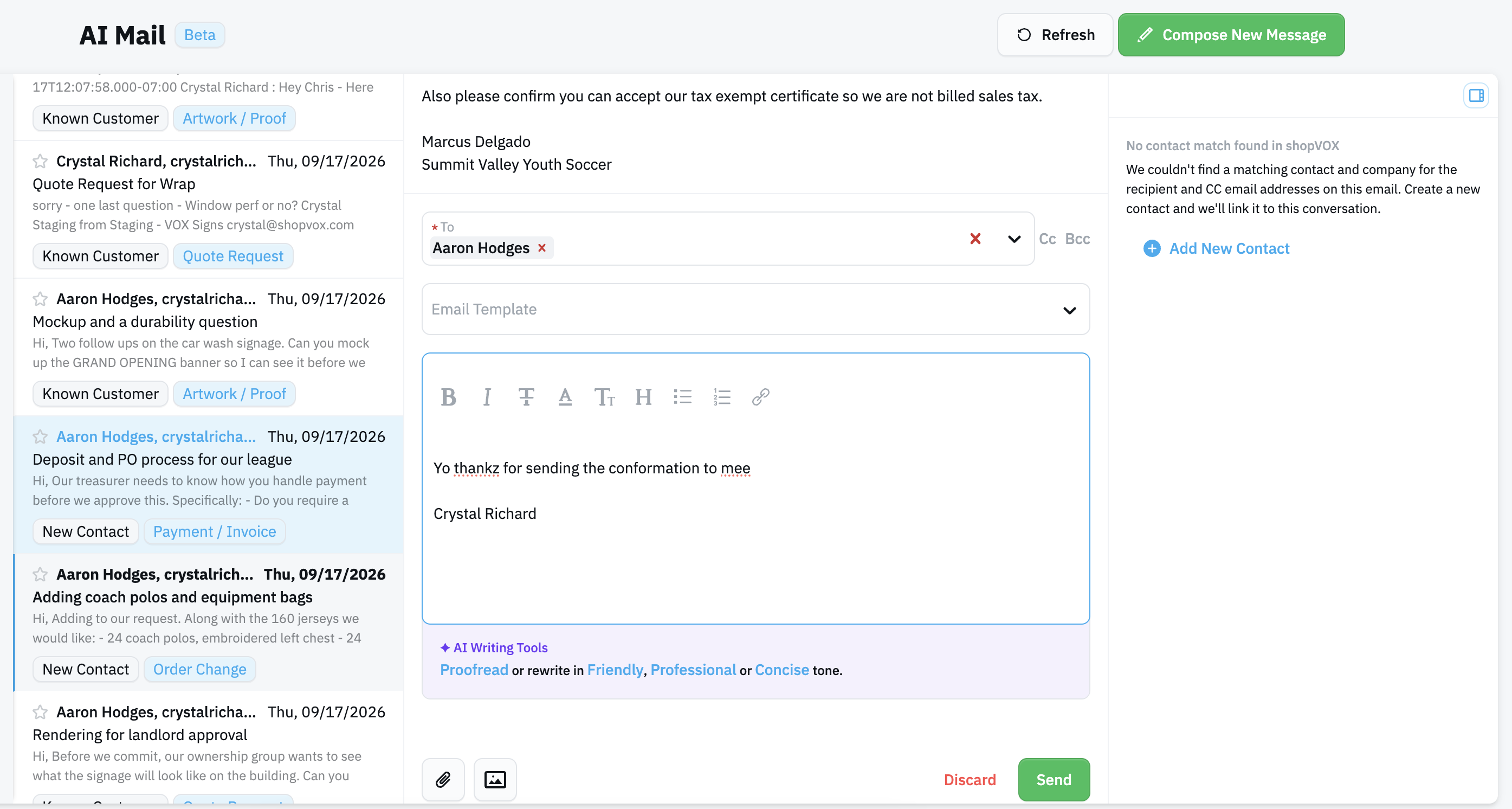
Open an email and click the arrow icon to Reply.
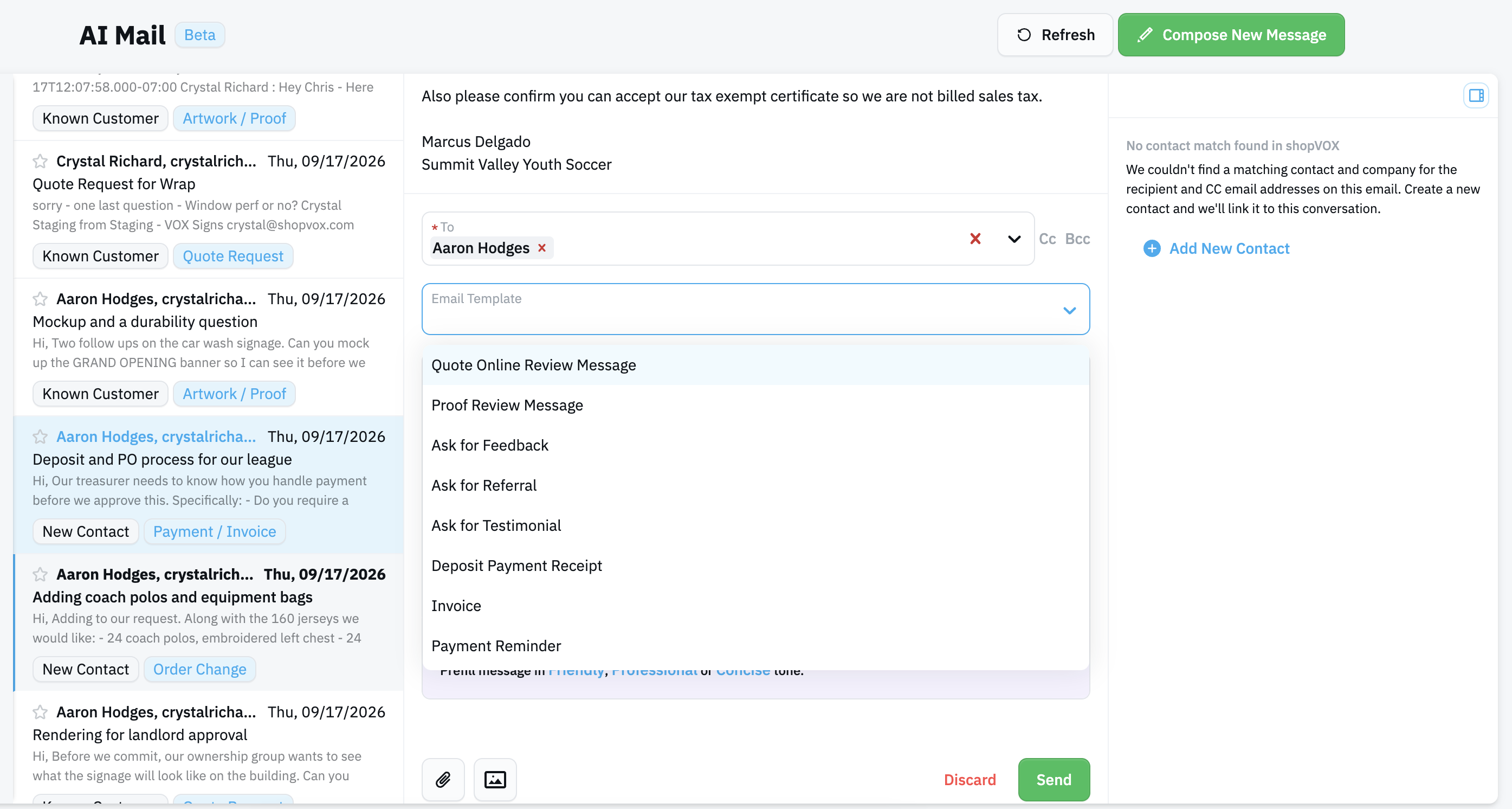
Start typing from scratch, or choose one of your email templates.
Use the AI writing tools to refine your draft:
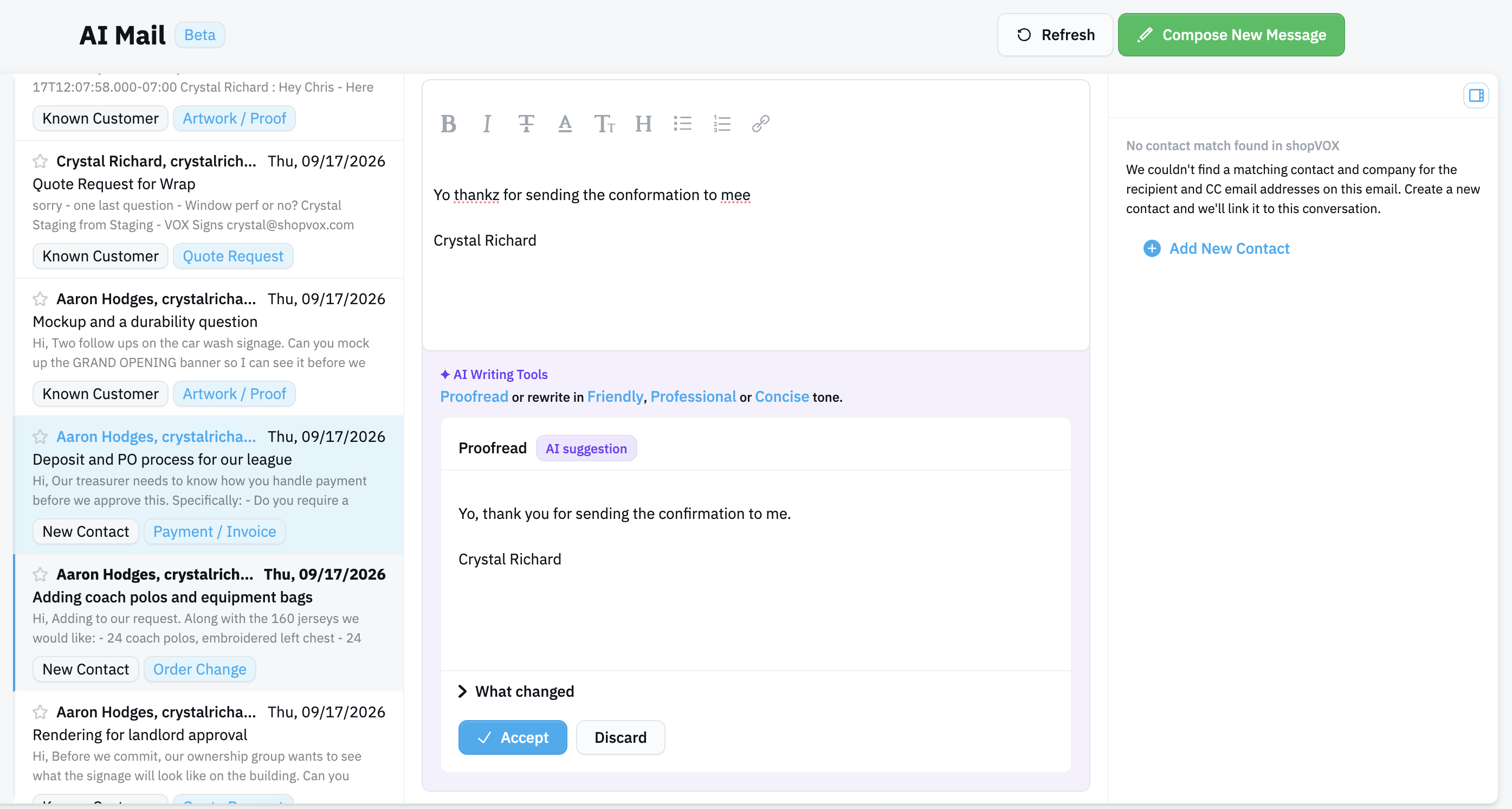
Proofread: catch typos and errors
Friendly: a warmer, more casual tone
Professional: a polished, business tone
Concise: shorter and more to the point Here is a screenshot of the Proofread option:
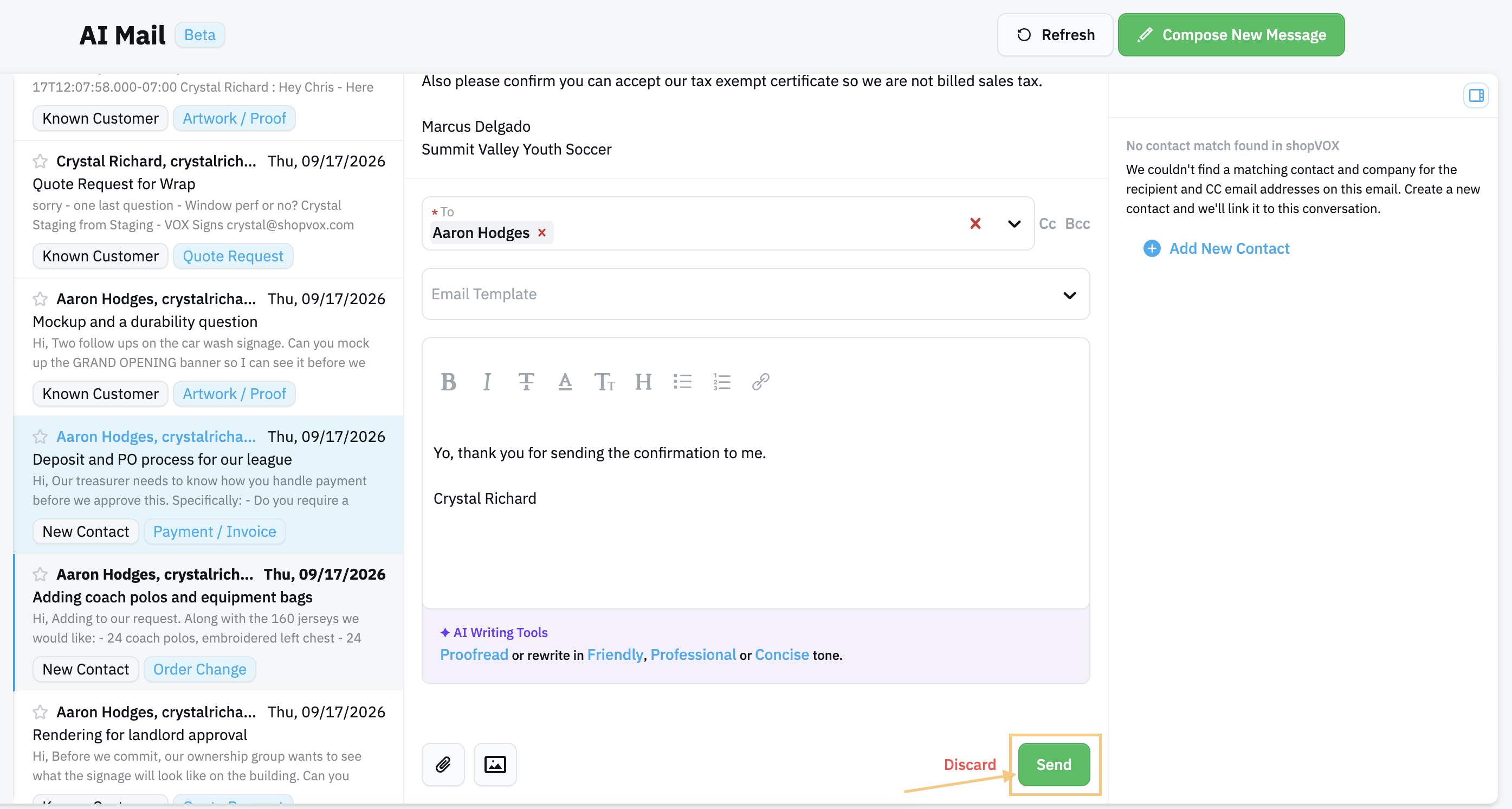
Review the suggestion. Accept it by clicking the blue Accept button, or run it again for a different version or tone.
Click Send.
Tip: Always review AI-suggested text before you send it, especially details like prices, quantities, and dates. AI is not perfect and needs human eyes to validate.
Composing a Regular Email from AI Mail
Click "Compose New Message"
Fill in the To fields, subject or select a preset Email template.
When complete, click Send.
Want to update the email templates? Visit Settings -> Emails to update the account email templates.
FAQs
Does AI Mail work with my email provider? AI Mail supports Gmail, Google Workspace, and Microsoft Outlook 365. For other providers, you can use IMAP settings.
Is there a cost for AI Mail? No. AI Mail is included with shopVOX Pro at no additional charge.* See the note under Availability.
How do I get access? AI Mail is currently in beta for Level Up and Roadmap/AI webinar attendees. If you're in the beta group, it turns on automatically and our team will reach out with a mass email. Be sure you are subscribed to our automatic emails. We'll expand access to more customers in stages.
Does the email I connect have to match my shopVOX login? No. You can connect any supported email account.
Can other users see my email? No. Each user connects their own inbox and sees only their own mail.
Do I have to use AI Mail? No. AI Mail is optional.
Disconnecting Your Email Need help disconnecting a user? Contact beta support at betatest@shopvox.com
 Updated
by Crystal Richard
Updated
by Crystal Richard
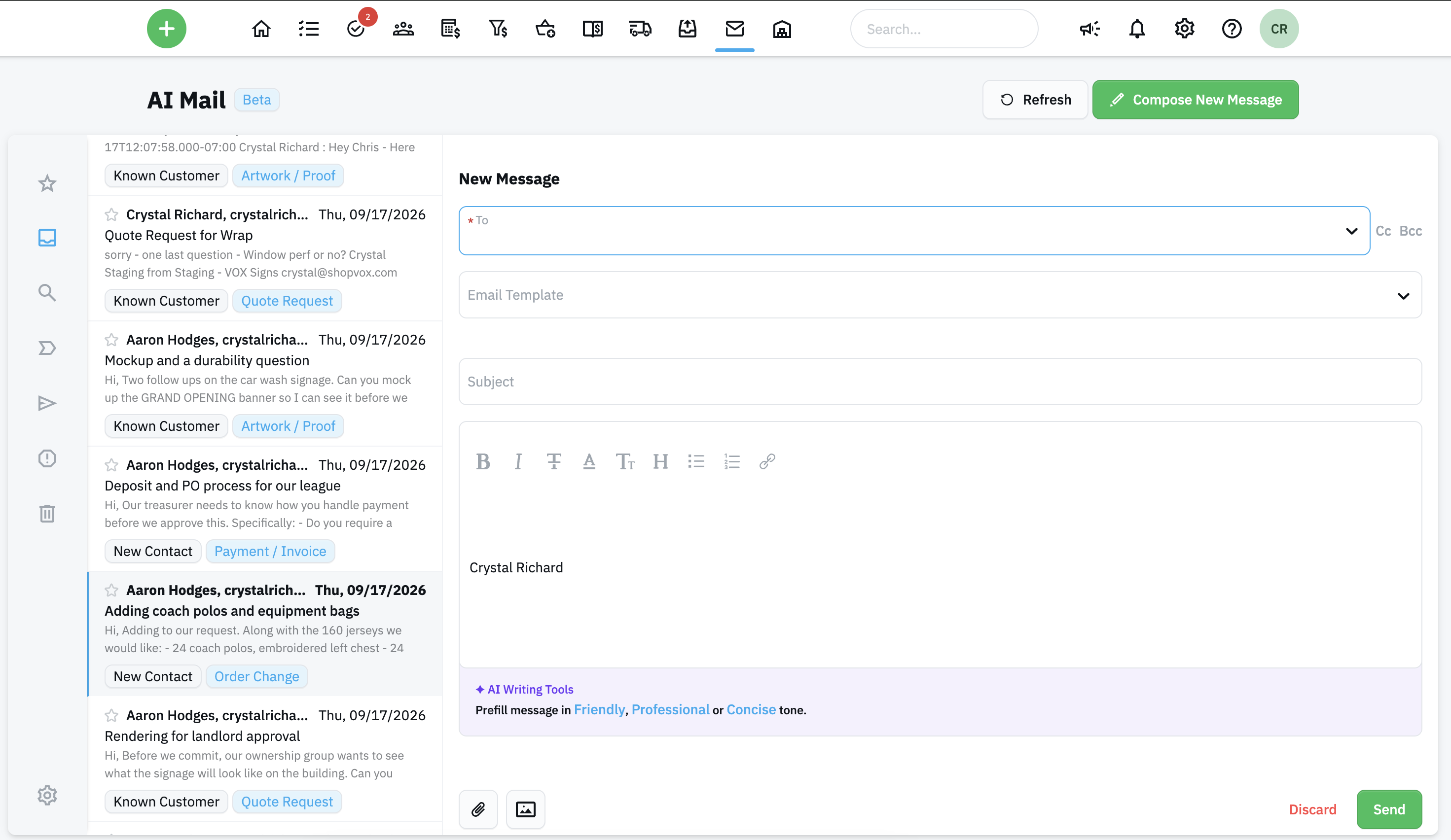 Want to update the email templates? Visit Settings -> Emails to update the account email templates.
